Dalet Flex documentation has moved!
This page is no longer actively maintained. For the latest documentation, please visit us at our new support portal: https://support.dalet.com
Overview
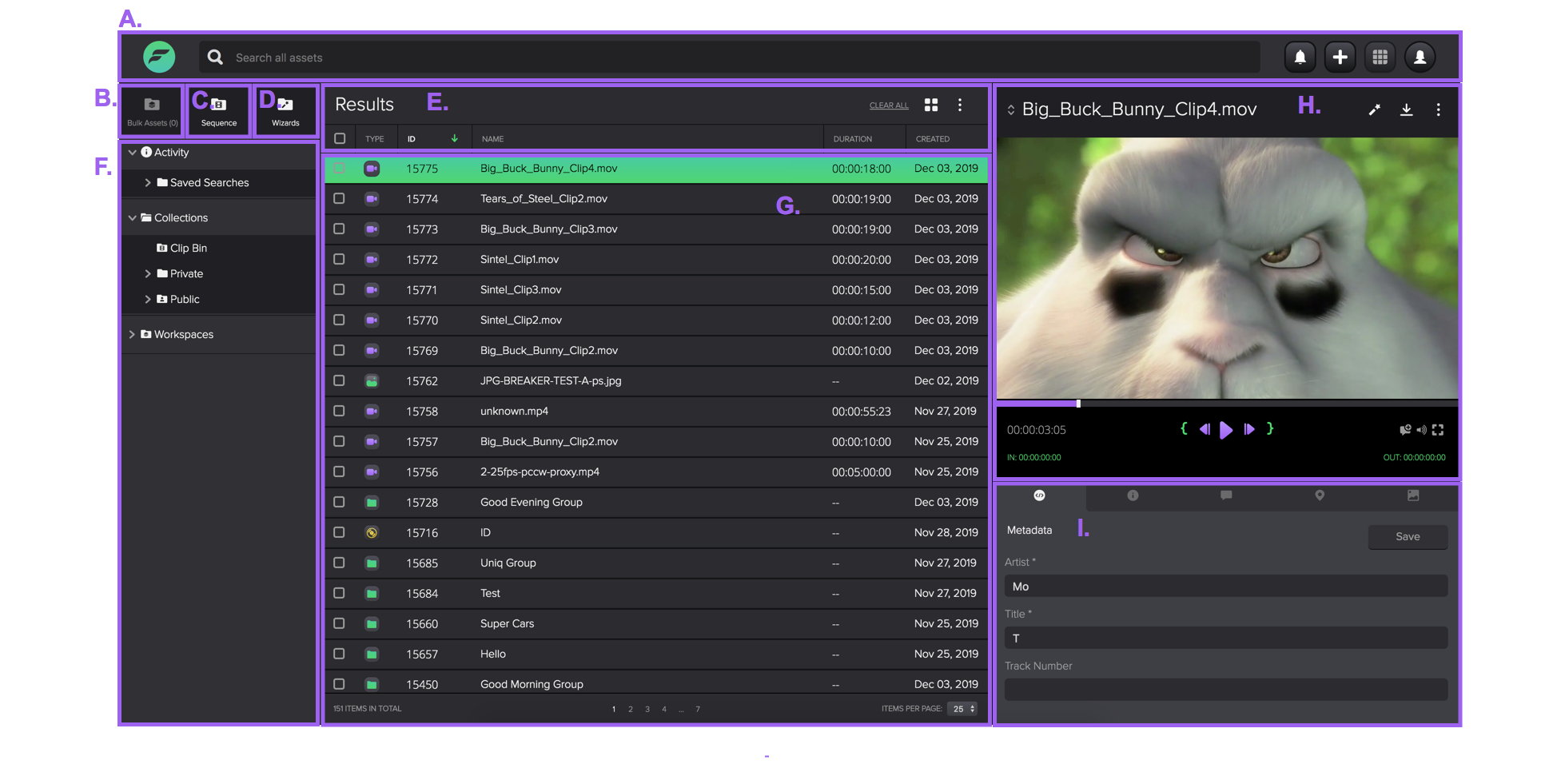
A) Header
- Search bar: You can use the search bar to search for assets by entering an asset ID or asset name.
- Notifications: Click on the bell icon to see your notifications relating to workflows and tasks.
- Add: Click the add button to add new Collections, Groups, Placeholders, and UDOs.
- App Switcher: You can use the app switcher to switch between different Dalet Flex apps, e.g.: FlexTRACK, FlexMOVE, FlexREVIEW, etc.
- Profile: View and edit your profile information. You can also log out here.
B) Bulk Assets: When you select multiple assets from the list by ticking the checkboxes, they will appear here, where you can perform bulk actions.
C) Sequence: When you go to the Sequences page, the Clip Bin will load by default. However, you can load collections to create sequences with, by navigating to different collections with the right folder navigation panel.
D) Wizards: Perform preconfigured wizards here.
E) Search filters and listing: Your asset or marker search results are shown in a table or tile view that you can toggle between
- Table configuration: You can create templates to configure your search listing column headers to achieve more accurate filtering.
- Filters/refinement: You can filter and sort your search results with table column headers.
F) Folder Navigation:
- Activity: This contains your saved searches and recent activity.
- Collections: This contains your clip bin, active collections, private and public collections.
Any preconfigured taxonomies will also appear here.
G) Results: Your search results are displayed here.
H) Preview panel: You can preview and manage your asset here.
I) Summary Tabs: Toggle between these tabs to view information such as metadata, comments, markers, and keyframes etc. for your selected asset.