Dalet Flex documentation has moved!
This page is no longer actively maintained. For the latest documentation, please visit us at our new support portal: https://support.dalet.com
Step 2 - Creating Folder Resources
Folder Resources
Dalet Flex does not communicate directly with your storage resources, instead it connects to them via Folder Resources. It is important to understand that Folders are a logical concept in Dalet Flex that are used for configuration, they do not refer to any physical object or location. You create a folder and add a reference to any storage resource you want to connect to using the folder. In this way, Dalet Flex knows the physical location of the storage resource, for example an S3 bucket. If you need to, you can point to multiple storage resources using a single folder.
Creating a folder resource
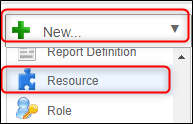
In Flex Core, go to the New menu and select Resource.
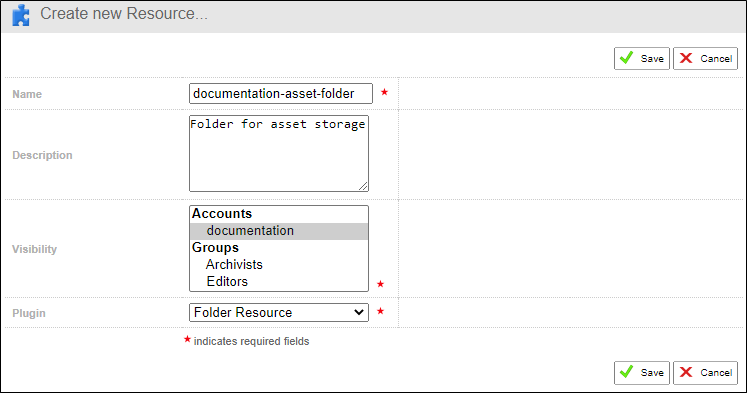
In the Create new Resource screen, give your folder resource a Name and an optional Description. Set which accounts and groups have access to the folder by setting its Visibility and select Folder Resource Plugin. In this example, you can see a folder resource to connect to the asset storage resource that was created before.
Save your changes and then move to the Configuration sub-tab and click Edit to add the storage resource that the folder connects to from the Storage Resource drop down list.
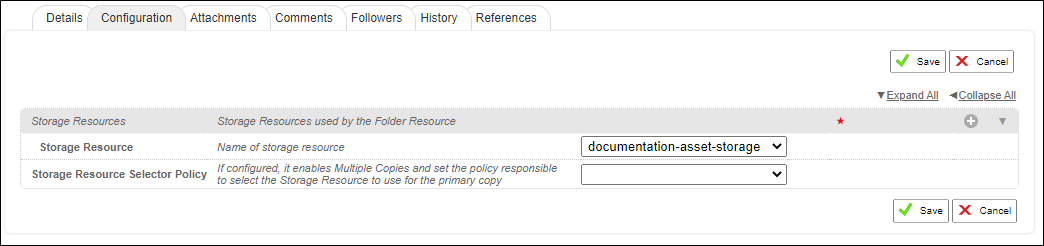
Click Save to finish and then Enable and Start the folder.
You need to create a folder to connect to all storage resources, for example, if you created a proxy storage resource you should create a Proxy folder resource to connect to it.
You do not create a Folder resource to connect to the storage resource that you created for assets you are uploading with FlexMOVE. After you create your import workflow, you will create a special Inbox resource to connect to this storage.