Dalet Flex documentation has moved!
This page is no longer actively maintained. For the latest documentation, please visit us at our new support portal: https://support.dalet.com
Okta Integration
Configuring Okta as a SAML identity provider
Notes:
- This guide has been created with the assumption that users have a certain level of familiarity with SAML. Below are the steps for configuring SAML using Okta as an IdP (identity provider).
- To configure things on the Okta side, you need to have admin Okta permissions.
- To configure things on the Flex side, you need to have admin permissions in the Flex account to which you wish to link the IdP.
- Refer to the IdP-agnostic information here to obtain information from Flex.
Configuration steps (Okta side)
The following Okta developer article is a useful reference point: https://developer.okta.com/standards/SAML/setting_up_a_saml_application_in_okta
-
Switch to the Classic UI (drop-down in top left, from Developer Console).
-
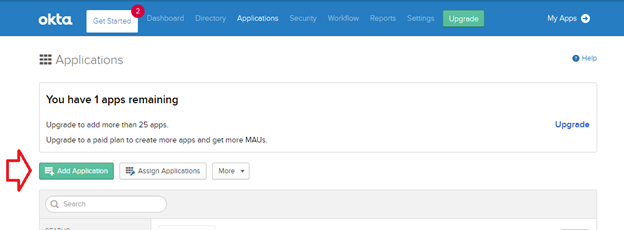
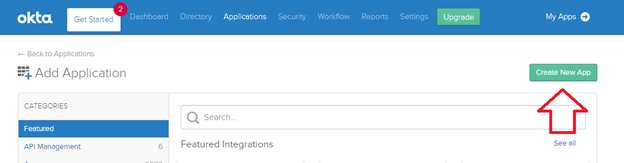
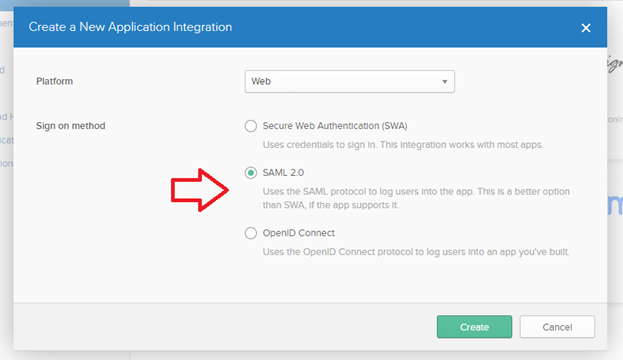
Go to Applications -> Add Application -> Create New App. Select the platform Web, and Sign on method SAML 2.0. Click Create.
-
Provide a meaningful name e.g.
Dalet Flex. Add a logo if you wish, and click Next.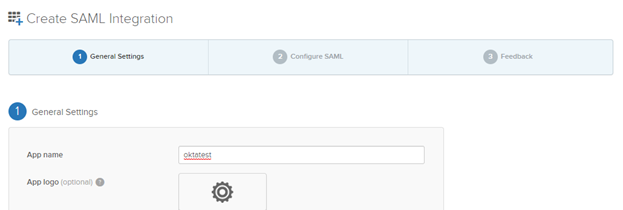
-
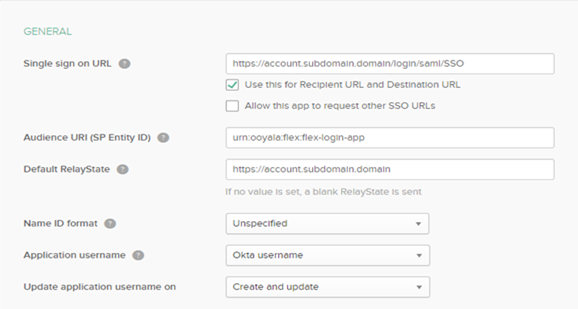
Populate the SAML General settings fields according to the details of your Flex deployment, i.e:
- SSO URL should be like
https://{account}.{your-flex-deployment.com}/login/saml/SSO - Audience URI should be
urn:ooyala:flex:flex-login-app - Default RelayState is only required if you want users to be able to initiate authentication from their Okta
dashboard. In this case it should be the desired Flex entry point, e.g.
https://{account}.{your-flex-deployment.com}/fmp/index/for the MAM UI.
- SSO URL should be like
-
If you are running Flex version 2019.7.0 onwards and have enabled global logout in account metadata settings, you need to click on Show Advanced Settings and populate the relevant fields accordingly.

As part of this, you need to upload the certificate file (CRT file) that you downloaded earlier.
-
Populate five Attribute Statements as shown in the screenshot, replacing the value for
flexAccountUuidwith the Flex account UUID you identified earlier.
-
If you wish to enable Group Sync functionality, then set the Group Attribute Statement as shown. To make all groups available to Flex, the filter should be specified as:
Matches regex = .*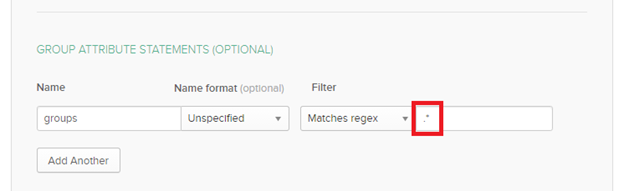
-
Leave everything else untouched, click on Next and then Finish.
-
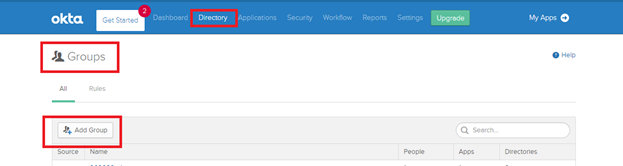
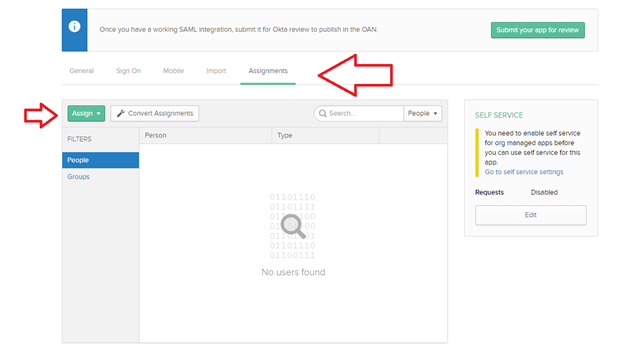
Once the application is created & configured now assign people (users) to this application, and optionally create and assign groups.
-
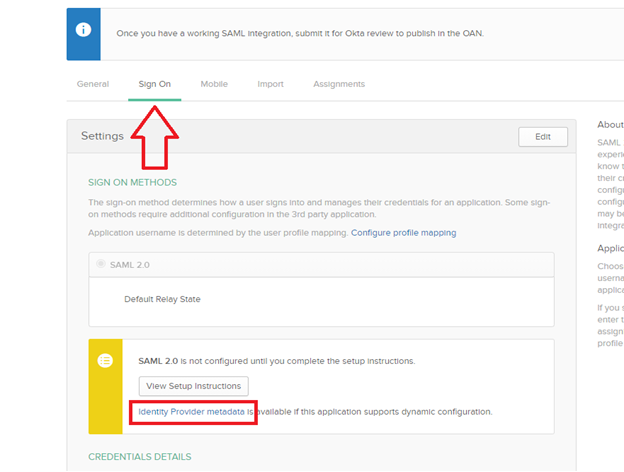
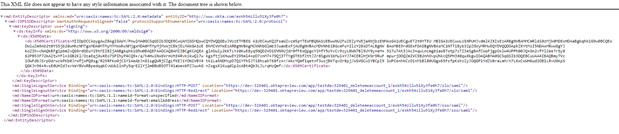
Determine the IdP metadata, or metadata url. Navigate onto Sign On tab, then either:
- click on the link Identity Provider metadata and copy the contents of the XML that is displayed (recommended)
- right-click on the link Identity Provider metadata and click Copy Link Address.
Configuration steps (Flex side)
- Log into the Flex account to which you wish to link the IdP.
- On the Account Details page, click the Metadata sub-tab and expand the External Authentication section. Specify values for both the Default Role and Default Owner fields.
- Expand the SAML Configuration section. Choose whether you wish to redirect to IdP login page automatically, and enter the IdP Display Name to be used on the login page (which will only be visible if IdP Redirect is set to No).
- Optionally, Enable IdP to Flex Group membership sync. (For this to work correctly, Groups should be configured in Flex with names matching any relevant Groups configured in Okta.)
- In the SAML Metadata Configuration section, provide either the static IdP metadata (recommended) or the URL from which the IdP metadata can be dynamically retrieved.
- Click Save, to save the configuration.
- Click Enable, to enable the account.
- In another browser, or an incognito window, navigate to Flex. The login page should either redirect to your IdP, or provide an appropriately-titled button allowing you to log in through the IdP, depending on your configuration choices above.
Additional notes
-
After updating the certificate in Okta, the account in Flex must be disabled and then re-enabled, so its cache can be refreshed.
-
Some issues have been encountered when using Firefox to retrieve the IdP metadata XML; use of Google Chrome is recommended.