Dalet Flex documentation has moved!
This page is no longer actively maintained. For the latest documentation, please visit us at our new support portal: https://support.dalet.com
Header Functions
The function buttons in the top right corner of FlexMAM allow you to access the Notification Center, switch between Dalet apps, add UDOs or upload assets, and view or edit your profile information.
Viewing your Notifications
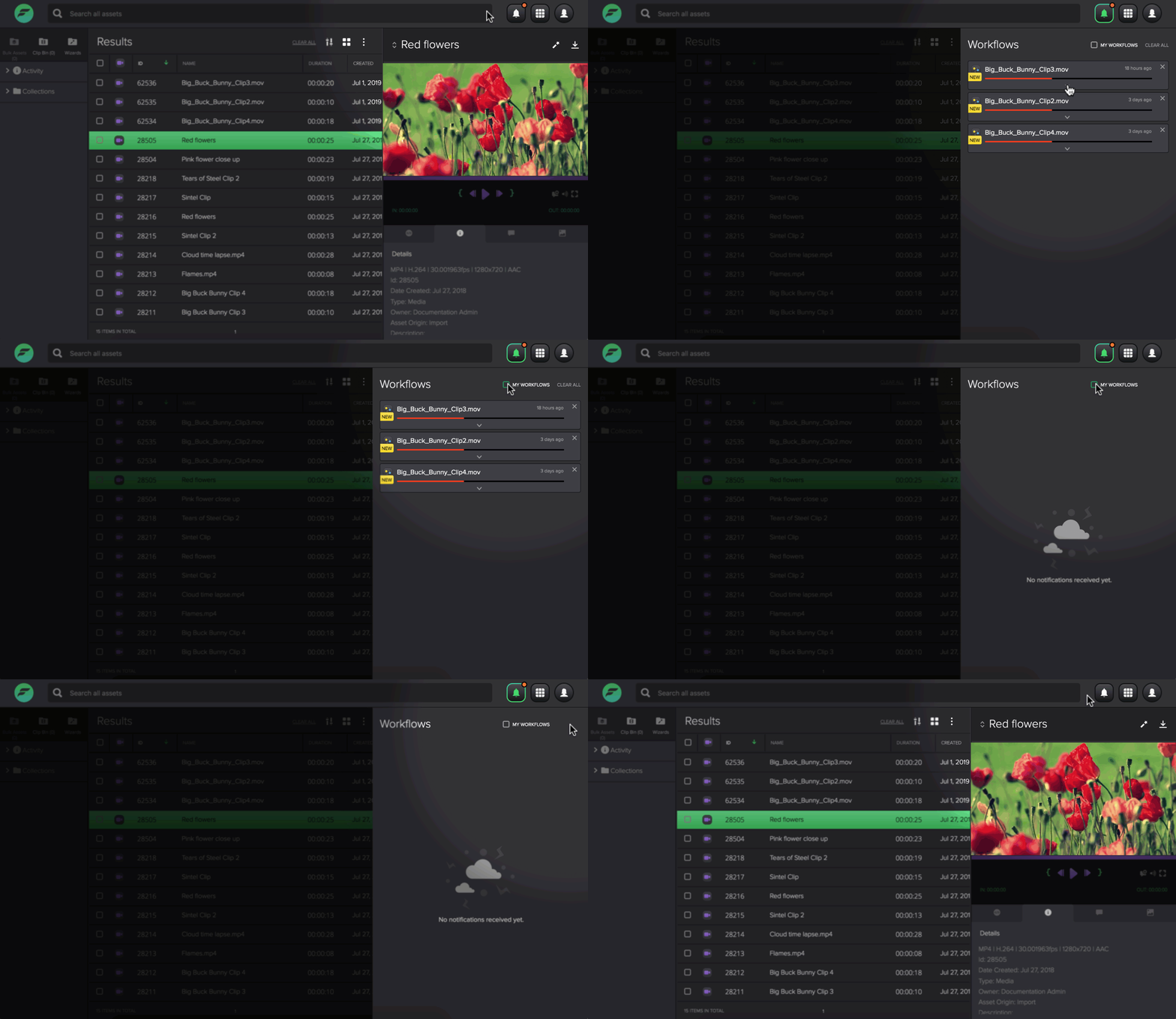
You can access your Notifications by clicking the bell icon
 at the top right. The Notification Center
centralizes all important notifications, providing high level information about current workflows and allows
quick navigation from any notification to the Operations Dashboard. You will receive notifications when a
workflow begins to run, has failed, has been cancelled, or has been completed.
at the top right. The Notification Center
centralizes all important notifications, providing high level information about current workflows and allows
quick navigation from any notification to the Operations Dashboard. You will receive notifications when a
workflow begins to run, has failed, has been cancelled, or has been completed.
To view workflow notifications:
- New or unread notifications are indicated by an orange circle icon overlay on the top right corner of the notifications button
 .
. - Click the it to open the Notifications panel.
- Tick the My Workflows checkbox to only receive notifications about your own workflows.
- Clear the notification panel by clicking CLEAR ALL.
To manage failed workflows:
-
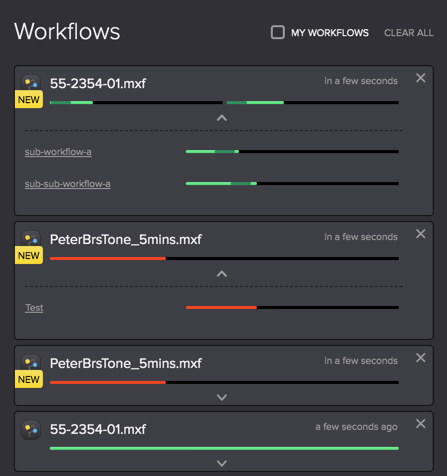
Expand the notification card by clicking
 to view the progress of each stage of your workflow. If your workflow has failed, you will be able to see where it happened.
-
You can hover over a failed workflow to view some details, such as workflow ID, owner, start date, and error. For further details, click the workflow to go to the Operations Dashboard.
-
If more than five workflows have failed over the last week you will see a summary card. Click the Investigate button to go to Operations Dashboard.

-
When you log in to FlexMAM, you can only view notifications about failed workflows that are less than a week old.
-
Notifications concerning failed workflows received while you are logged in will remain in the notification center for a week, while those regarding completed or cancelled workflows only remain for an hour.
To view task notifications
When there is a new task, an icon overlay will appear over the bell icon, similar to workflow notifications indicating a there is a new task. When there are new tasks in the pool, you can manage them within FlexMAM. You can learn more about tasks here.
Once you have opened the notification panel, you can toggle between tasks and workflows. Clicking the task panel will show you a list of tasks, in order of creation date and time. Tasks are sorted into two categories Available Tasks and My Tasks. New tasks will be indicated by a NEW label. Here you can perform the following actions by hovering over a task:
- Start task: Starts the task and assign it to you. This means that the task will disappear from the Available tasks menu and appear in My tasks.
- Take: Claim a task without starting it. This moves the task from the Available tasks menu to My tasks without starting it.
Once you click Start Task, it will open a window that allows you to Do this task. In this window you can fill out the metadata form and make any edits you wish. From here you can perform the following actions:
- Return task: Returns the tasks to the Available task pool
- Pause task: Pauses the task. This task will stay in your task pool and you can Resume it at any time.
- Finish task: Completes the task. Once you finish the task it will disappear from your task pool.
If you navigate away from the notifications panel or log out, FlexMAM will remember where you last left off, and will stay toggled to Available Tasks or My Tasks next time you access your tasks.
Using the Add Button
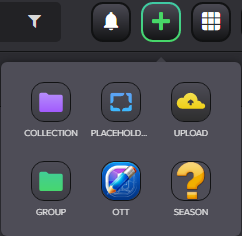
Click the  button to open a menu that allows you to create/add a
new collection, create new Groups, create Image/Video Placeholders, create new root UDOs, and upload assets via
FlexMOVE.
button to open a menu that allows you to create/add a
new collection, create new Groups, create Image/Video Placeholders, create new root UDOs, and upload assets via
FlexMOVE.
Switching between Apps
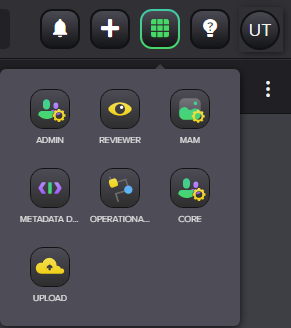
Click the app switcher button  on the top right. Here you
can access all the Dalet apps associated with your account or organization. You can use the app switcher to
launch between different Dalet Flex apps, e.g.: Dalet Flex Enterprise, FlexTRACK,
FlexMOVE, FlexREVIEW, etc.
on the top right. Here you
can access all the Dalet apps associated with your account or organization. You can use the app switcher to
launch between different Dalet Flex apps, e.g.: Dalet Flex Enterprise, FlexTRACK,
FlexMOVE, FlexREVIEW, etc.
Managing your Profile
You manage your profile using the profile icon button in the top right hand corner of the interface. It will either appear as a button with your initials,  or a previously configured profile picture. Clicking the profile icon opens the Profile pane. In the Profile pane, you can set the UI language, upload a profile picture, view and edit your profile information and log out from FlexMAM. The details you see correspond to your profile information in Dalet Flex Enterprise. Any changes you make are reflected in your profile information in
Dalet Flex Enterprise and vice versa.
or a previously configured profile picture. Clicking the profile icon opens the Profile pane. In the Profile pane, you can set the UI language, upload a profile picture, view and edit your profile information and log out from FlexMAM. The details you see correspond to your profile information in Dalet Flex Enterprise. Any changes you make are reflected in your profile information in
Dalet Flex Enterprise and vice versa.
To view and edit your profile information:
- Click on the profile icon or your profile photo, if you have previously set one in Dalet Flex Enterprise; your Profile Pane is displayed.
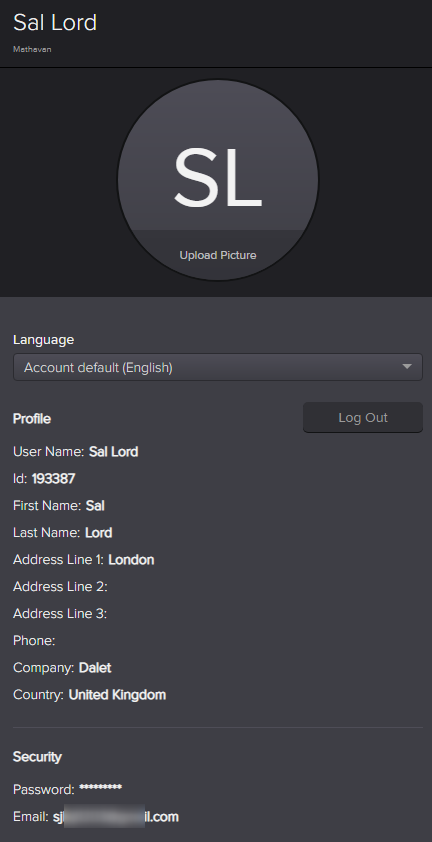
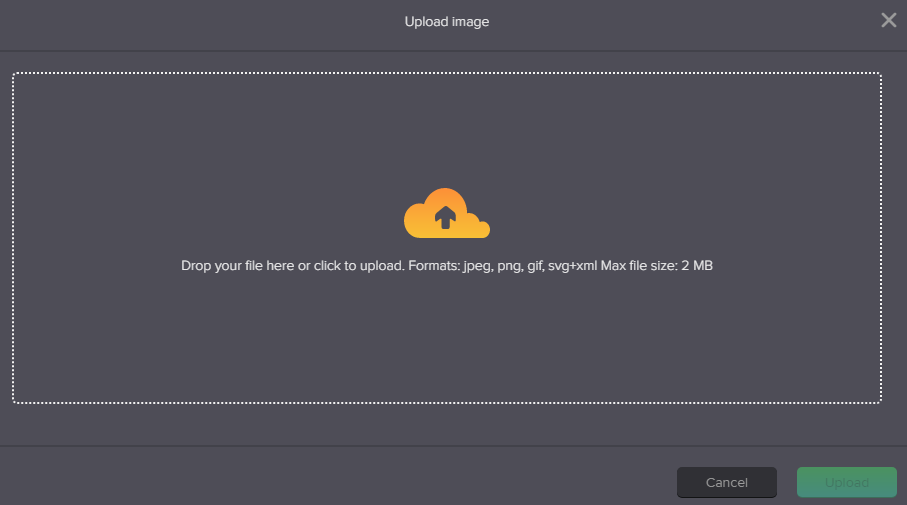
- To change your profile image, click Upload Picture and click in the Upload image dialog and select an image or drag an image into the Upload image dialog and click Open.
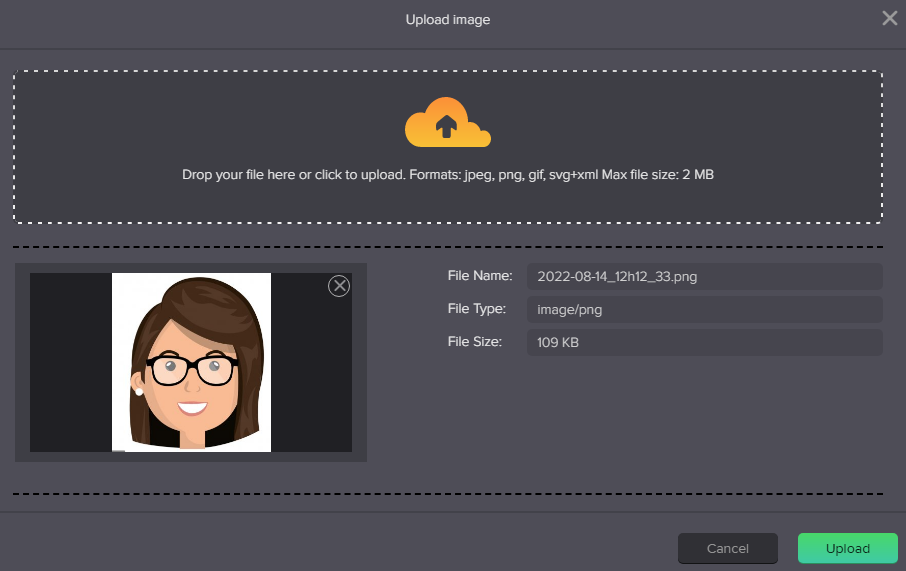
- Check the Preview of your image and click Upload.
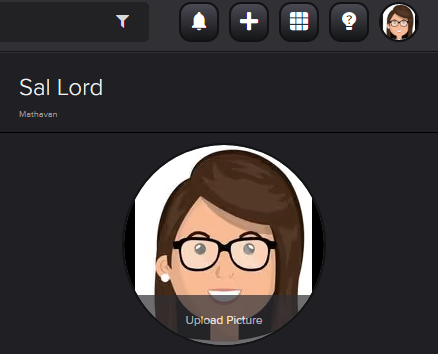
- Your image is uploaded and the profile icon button updates.
- In the Language drop down list, select the language for your FlexMAM interface.
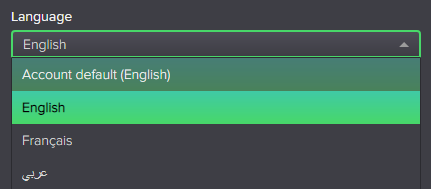 If you select a Right to Left language, the FlexMAM interface changes direction to support the language.
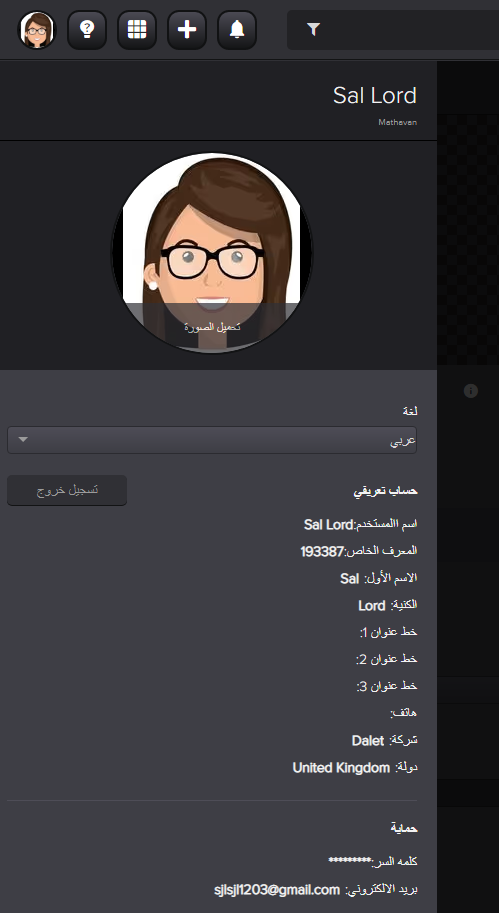
- Your User Name and Id are read only fields, but you can edit any of these fields by clicking in the field:
- First Name
- Last Name
- Address
- Phone
- Company
- Country
- Email

- Click the checkmark or Enter to save the changes.
- Click the Log Out button to logout of FlexMAM.
- To close the panel, click the profile icon or anywhere outside the Profile pane.