Dalet Flex documentation has moved!
This page is no longer actively maintained. For the latest documentation, please visit us at our new support portal: https://support.dalet.com
Azure AD Integration
Configuring Azure AD as a SAML identity provider
Notes:
- This guide has been created with the assumption that users have a certain level of familiarity with SAML. Below are the steps for configuring SAML using Azure AD as an IdP (identity provider).
- To configure things on the Azure AD side, you need to have admin Azure AD permissions.
- To configure things on the Flex side, you need to have admin permissions in the Flex account to which you wish to link the IdP.
- SAML integration with Azure AD is supported from Flex version 2020.4.2 onwards.
- Refer to the IdP-agnostic information here to obtain information from Flex.
Configuration steps (Azure AD side)
Azure AD has two types of enterprise applications – Gallery applications and Non-Gallery applications. Flex must be configured as a Non-Gallery application.
The following articles on the Microsoft website are useful reference points:
- https://docs.microsoft.com/en-us/azure/active-directory/manage-apps/configure-single-sign-on-non-gallery-applications
- https://docs.microsoft.com/en-us/azure/active-directory/manage-apps/non-gallery-apps
- https://docs.microsoft.com/en-us/azure/active-directory/manage-apps/add-application-portal
- https://docs.microsoft.com/en-us/azure/active-directory/manage-apps/add-application-portal-configure
- https://docs.microsoft.com/en-us/azure/active-directory/manage-apps/add-application-portal-assign-users
- https://docs.microsoft.com/en-us/azure/active-directory/manage-apps/add-application-portal-setup-sso
Basic SAML Configuration
The following settings are used for Basic SAML Configuration:
| Name | Value |
|---|---|
| Identifier (Entity ID) | urn:ooyala:flex:flex-login-app |
| Reply URL (Assertion Consumer Service URL) | like https://{account}.{your-flex-deployment.com}/login/saml/SSO |
| Sign on URL | like https://{account}.{your-flex-deployment.com}/login/saml/SSO |
| Relay State | desired Flex entry point, e.g. https://{account}.{your-flex-deployment.com}/fmp/index/ for the MAM UI |
| Logout URL | Optional; like https://{account}.{your-flex-deployment.com}/login/saml/SingleLogout |
| Service Provider Issuer | Required if Logout URL is specified; likeurn:ooyala:flex:flex-login-app |
For more information on global logout in Azure AD, see the following article on the Microsoft website: https://docs.microsoft.com/en-us/azure/active-directory/develop/single-sign-out-saml-protocol
User Attributes & Claims
The following attribute statements must be specified:
| Name | Value |
|---|---|
| login | user.userprincipalname |
| user.mail | |
| firstName | user.givenname |
| lastName | user.surname |
| flexAccountUuid | for this value, input the Flex account UUID you identified earlier |
For more information on customised claims in Azure AD, see the following article on the Microsoft website: https://docs.microsoft.com/en-us/azure/active-directory/develop/active-directory-saml-claims-customization
Note: Keep the Namespace URI field blank while configuring user attributes & claims statements.
Relay states – per application configuration
If users are designed to land on applications from Azure by clicking an icon from Azure dashboard we need to configure a separate Azure entry for each application. If you look at above configuration parameters, there is no context of application i.e. Azure / application will not know where to land after successful authentication, this can be solved by providing a value in Default Relay State, which specifies the redirect destination following successful authentication.
Below is the table for all the Flex applications and their corresponding URLs.
| Application | Default Relay State |
|---|---|
| Flex Core | https://{account}.{your-flex-deployment.com}/ |
| FlexMAM | https://{account}.{your-flex-deployment.com}/fmp/index/ |
| FlexREVIEW | https://{account}.{your-flex-deployment.com}/review/ |
| FlexTRACK | https://{account}.{your-flex-deployment.com}/dashboard/ |
| FlexMOVE | https://{account}.{your-flex-deployment.com}/upload/ |
| Metadata Designer | https://{account}.{your-flex-deployment.com}/metadata/ |
| Workflow Designer | https://{account}.{your-flex-deployment.com}/workflow/ |
Note:
The Default Relay configuration is only required if you want to initiate authentication from an IdP dashboard. If you
were to initiate authentication from the Flex login page, you don’t need multiple IdP entries for different
applications; one entry will suffice in the Azure AD configuration, e.g.
https://{account}.{your-flex-deployment.com}/fmp/index/.
It’s also worth noting that depending on the configuration of the load balancer, the trailing ‘/’ may need to be removed for the defined relay states above to function correctly.
Provide the Flex SAML SP certificate
This can be uploaded to Azure AD using the certificate file that you created earlier.
Obtain the IdP Metadata XML
Now that the Azure AD configuration is in place, we need to obtain the IdP metadata XML from our new Azure AD Non-Gallery application. (We are not interested in the Federation metadata XML.)
To download the application metadata or certificate from Azure AD, follow these steps:
- Open the Azure portal and sign in as a Global Administrator or Co-admin.
- Open the Azure Active Directory Extension by clicking All services at the top of the main left-hand navigation menu.
- Type in
Azure Active Directoryin the filter search box and select the Azure Active Directory item. - Click Enterprise Applications from the Azure Active Directory left-hand navigation menu.
- Click All Applications to view a list of all your applications.
- If you do not see the application you created earlier, use the Filter control at the top of the All Applications list and set the Show option to All Applications.
- Select the application you created earlier.
- Once the application loads, click Single sign-on from the application’s left-hand navigation menu.
- Go to the SAML Signing Certificate section, then click Download column value. You may see either the option to download the Metadata XML or the Certificate.
Note: Azure AD does not provide a URL for dynamic IdP metadata retrieval - it can only be obtained as a static XML file. For more details, see the following article on the Microsoft website: https://docs.microsoft.com/en-us/azure/active-directory/manage-apps/troubleshoot-saml-based-sso#where-do-i-get-the-application-metadata-or-certificate-from-azure-ad
Modify the IdP Metadata XML
The IdP Metadata XML provided by Azure AD is unfortunately not fully compliant with SAML standards. Therefore, for it to be used in Flex, some manual customization is needed.
This is an important step; if the XML is not edited correctly, not only will SAML not function, but it could potentially cause the Flex Login App to stop functioning. After editing this file, we recommended you securely validate the XML (do not use a SAML Metadata XML Validator; even the un-edited version will fail).
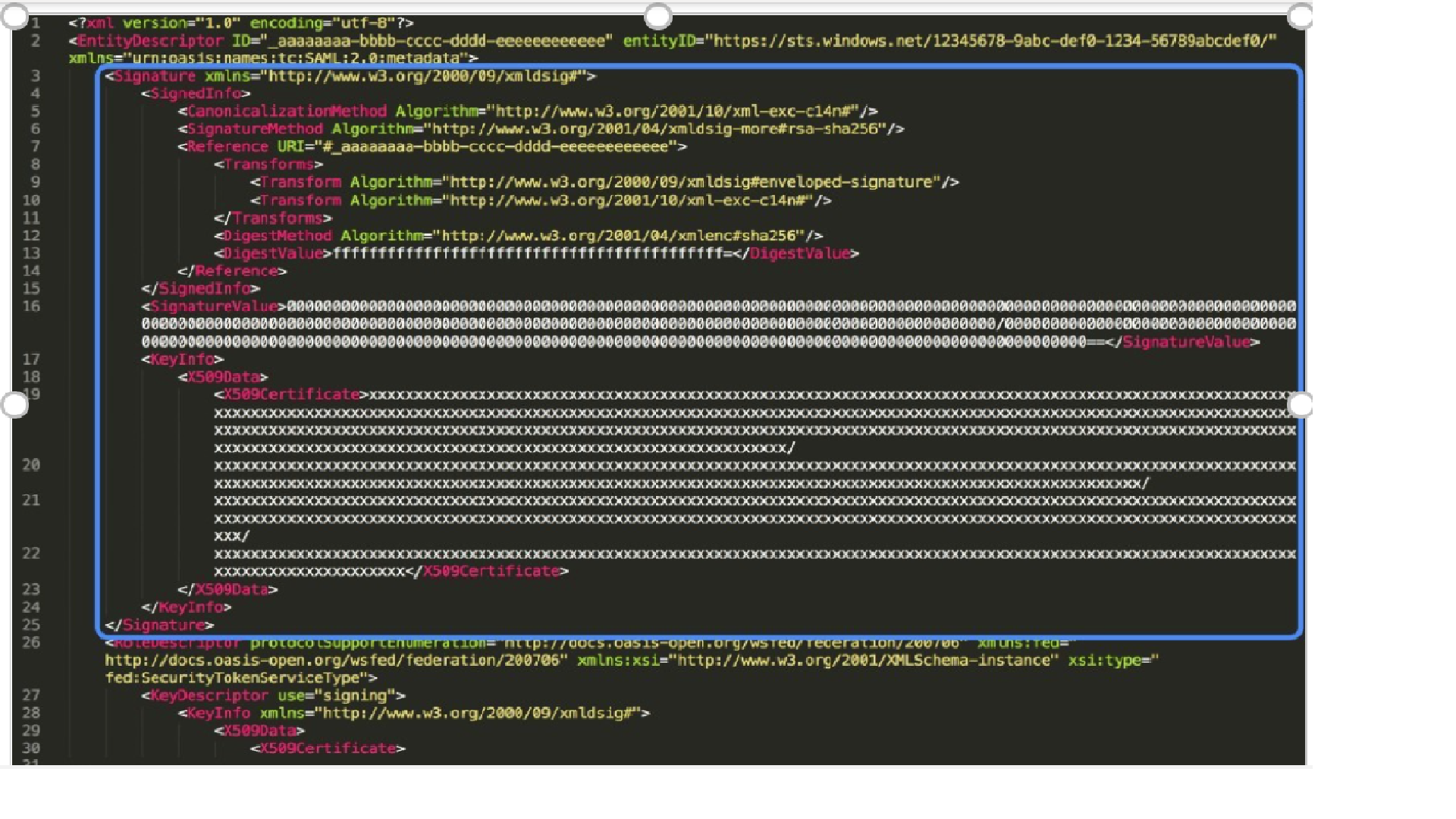
The XML metadata block for Signature needs to be removed.
Towards the top of the XML file, you’ll find the line:
<Signature xmlns="http://www.w3.org/2000/09/xmldsig#">
This XML element and all its contents must be removed, down to and including:
</Signature>
An example of the section to be removed can be seen below: -
Save the modified XML file as it will be needed in the next section.
Configuration steps (Flex side)
- Log into the Flex account to which you wish to link the IdP.
- On the Account Details page, click the Metadata sub-tab and expand the External Authentication section. Specify values for both the Default Role and Default Owner fields.
- Expand the SAML Configuration section. Choose whether you wish to redirect to IdP login page automatically, and enter the IdP Display Name to be used on the login page (which will only be visible if IdP Redirect is set to No).
- Optionally, Enable IdP to Flex Group membership sync. (For this to work correctly, Groups should be configured in Flex with names matching any relevant Groups configured in Azure AD.)
- Optionally, Enable Global Logout if you wish to, and you earlier configured the logout URL. This means that when a user logs out from Flex, they’ll also be logged out from Azure AD.
- In the SAML Metadata Configuration section, provide the modified static IdP metadata. As noted earlier, using a URL for dynamic IdP metadata retrieval is not possible with Azure AD.
- Click Save, to save the configuration.
- Click Enable, to enable the account.
- In another browser, or an incognito window, navigate to Flex. The login page should either redirect to your IdP, or provide an appropriately-titled button allowing you to log in through the IdP, depending on your configuration choices above.
Notes:
For more information on Azure AD IdP Group attribute mapping (required for IdP to Flex Group membership sync), see the following articles:
- https://docs.microsoft.com/en-us/azure/active-directory/develop/active-directory-optional-claims
- https://docs.microsoft.com/en-us/azure/active-directory/hybrid/how-to-connect-fed-group-claims
- https://docs.microsoft.com/en-us/azure/active-directory/develop/active-directory-claims-mapping
- https://blog.hametbenoit.info/2019/04/29/azure-ad-you-can-now-use-group-claims-in-saml-and-oidc-oauth-token/#.X4ZzSpMzZBz