Dalet Flex documentation has moved!
This page is no longer actively maintained. For the latest documentation, please visit us at our new support portal: https://support.dalet.com
Creating an Import Workflow - Getting Started
Introduction
An import workflow is used to ingest files into Dalet Flex and register them as Assets. The workflow can be triggered via user interface such as FlexMOVE or programmatically through a hotfolder, API call, or even other workflows. This tutorial focuses on the most straightforward case: FlexMOVE. In this tutorial, you will learn how to create a basic import workflow that:
In this tutorial, you will learn how to create a basic import workflow that:
- Imports a video asset
- Extracts technical data
- Creates a proxy
To create any workflow in Dalet Flex, you first need to create the objects that will be used in the workflow. Even, for a basic import workflow, which essentially just ingests an asset, you need to tell the system:
- Where assets are stored - Storage Resources
- How the system communicates with the storage - Folder Resources
- What to do with imported assets – Actions
- How to manage the import of assets – Import Workflow
- How files will be delivered to Dalet Flex - Inbox Resource
If you already have your main asset and proxy storage resources/folders correctly configured, you only need to configure: actions, workflow and the Inbox with associated storage.
Configuration
Before you start it is important to familiarize yourself with how to configure objects in Dalet Flex. The main configurations required in Dalet Flex are performed in the Configuration sub-tab. When you click Edit for the first time in the Configuration sub-tab you will notice that many of the sections in the screen are collapsed, and you only see the minimum mandatory parameters required to configure the current object. For example, this is what you see in the Configuration tab when you first create an import action.
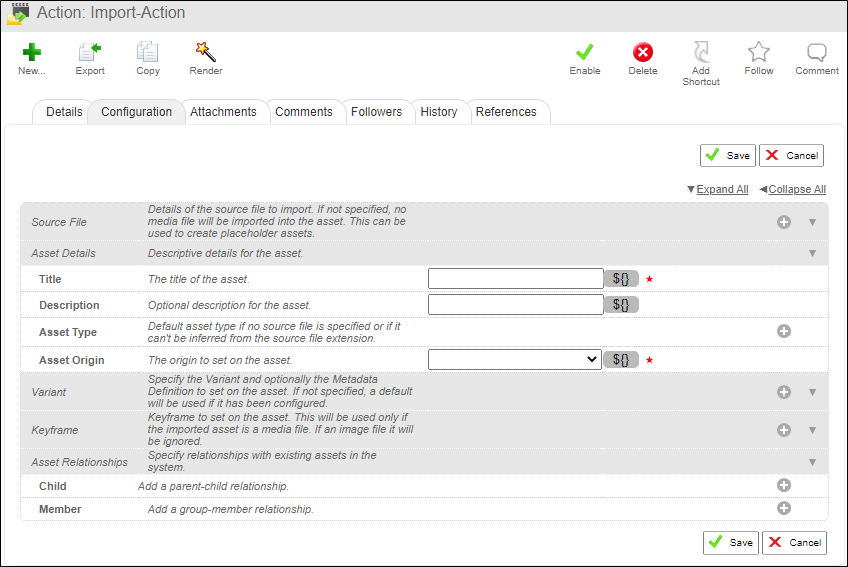
To add a configuration to any of the hidden sections, you must click on the  icon to add a new item.

Inside each section there may be additional hidden sections.

For example, in an import action, if you click again, you can configure the details of the Source File.

You must click for every section on the screen that you want to add to your configuration. Of course, if you want to remove a section that you have added, just click the  icon.
icon.
Once you have added a section you will not be able to save the configuration until you have supplied all the mandatory fields in that section (marked with ). If you do not want to configure these fields, you must remove the whole section.
Prerequisites
To import a video file, you must have a variant of type video configured. If you want to associate metadata to your asset, you must have at least one metadata schema configured.
To create a proxy version of an asset, you must have a Proxy Transcode Profile configured. If you do not have this, you cannot create a Create Proxy action.
Getting Started
Use the links in the Introduction above to learn how to create your workflow.