Dalet Flex documentation has moved!
This page is no longer actively maintained. For the latest documentation, please visit us at our new support portal: https://support.dalet.com
PingOne (Cloud-based SSO from PingIdentity) Integration
Configuring PingOne (Cloud-based SSO from PingIdentity) as a SAML identity provider
Notes:
- This guide has been created with the assumption that users have a certain level of familiarity with SAML. Below are the steps for configuring SAML using PingOne For Enterprise as an IdP (identity provider).
- To configure things on the PingOne side, you need to have access to the PingOne admin account.
- To configure things on the Flex side, you need to have admin permissions in the Flex account to which you wish to link the IdP.
- SAML integration with PingOne is supported from Flex version 2020.12.0 onwards.
- Refer to the IdP-agnostic information here to obtain information from Flex.
Configuration steps (PingOne side)
The following steps need to be performed within the PingOne admin account.
Add application
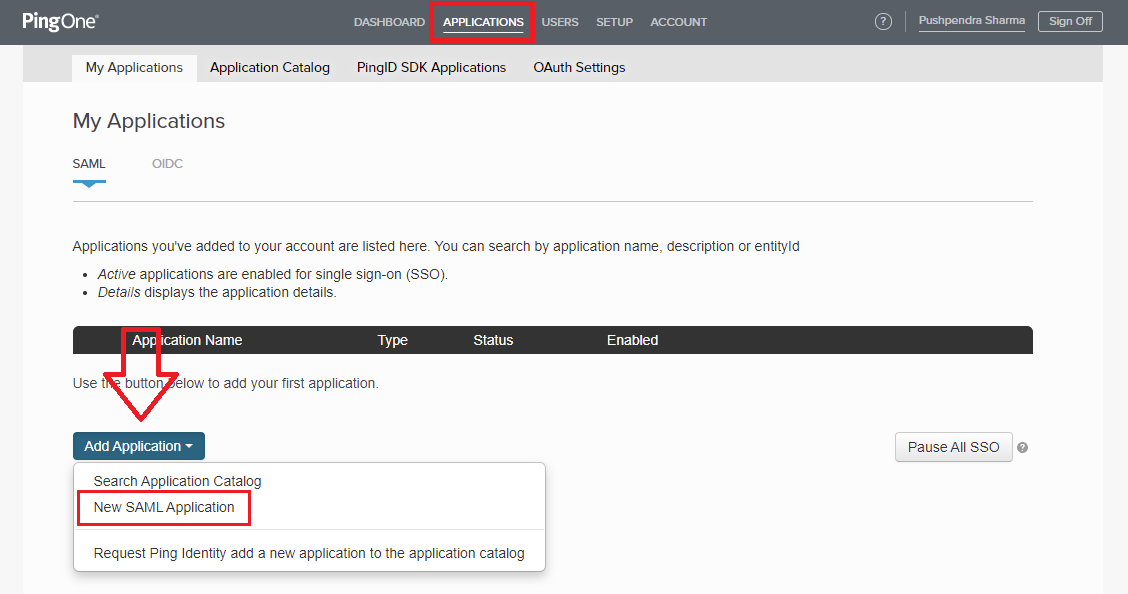
Navigate to the APPLICATIONS tab, click on the Add Application button and select New SAML Application.
1. Application Details
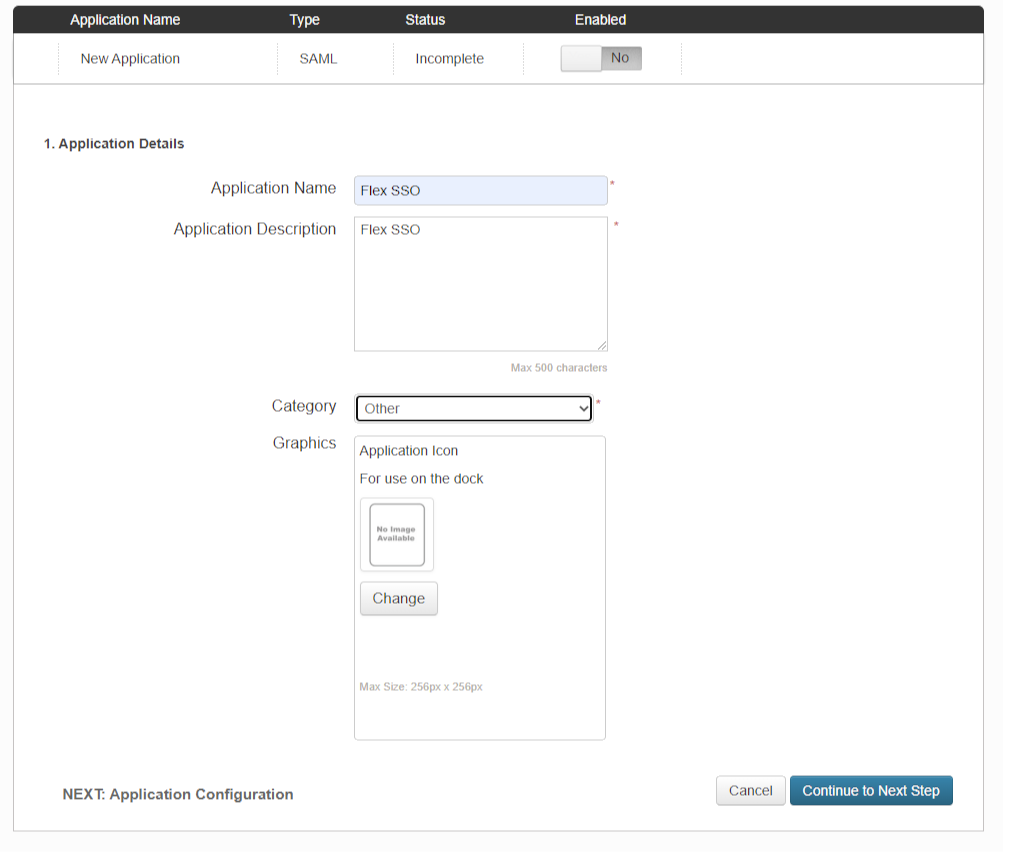
As per the screenshot, provide a name, description, optionally an icon. The Category field can be set as you prefer; it will not affect the Flex SAML integration in any way.
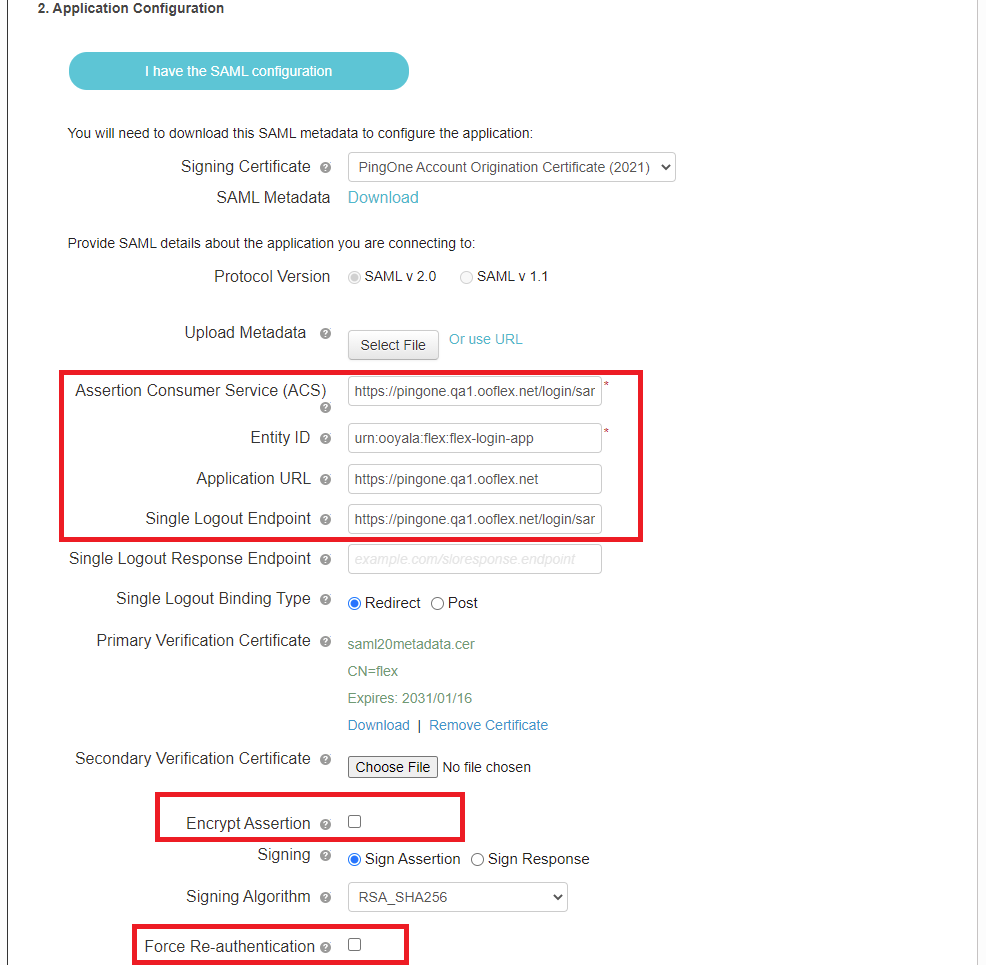
2. Application Configuration
As per the screenshot, start by setting Protocol Version to SAML v 2.0, and then upload Flex’s SAML metadata XML that you acquired earlier.
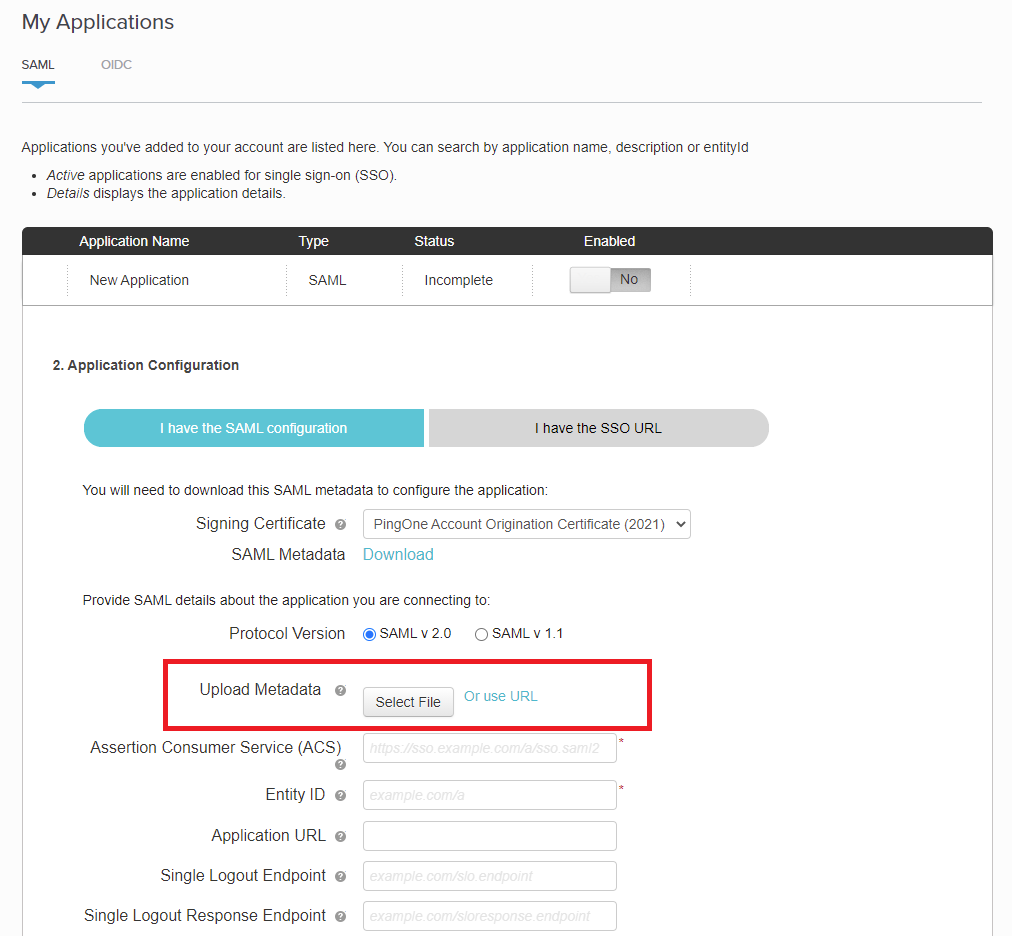
This will auto-populate many of the required fields, as per the next screenshot.
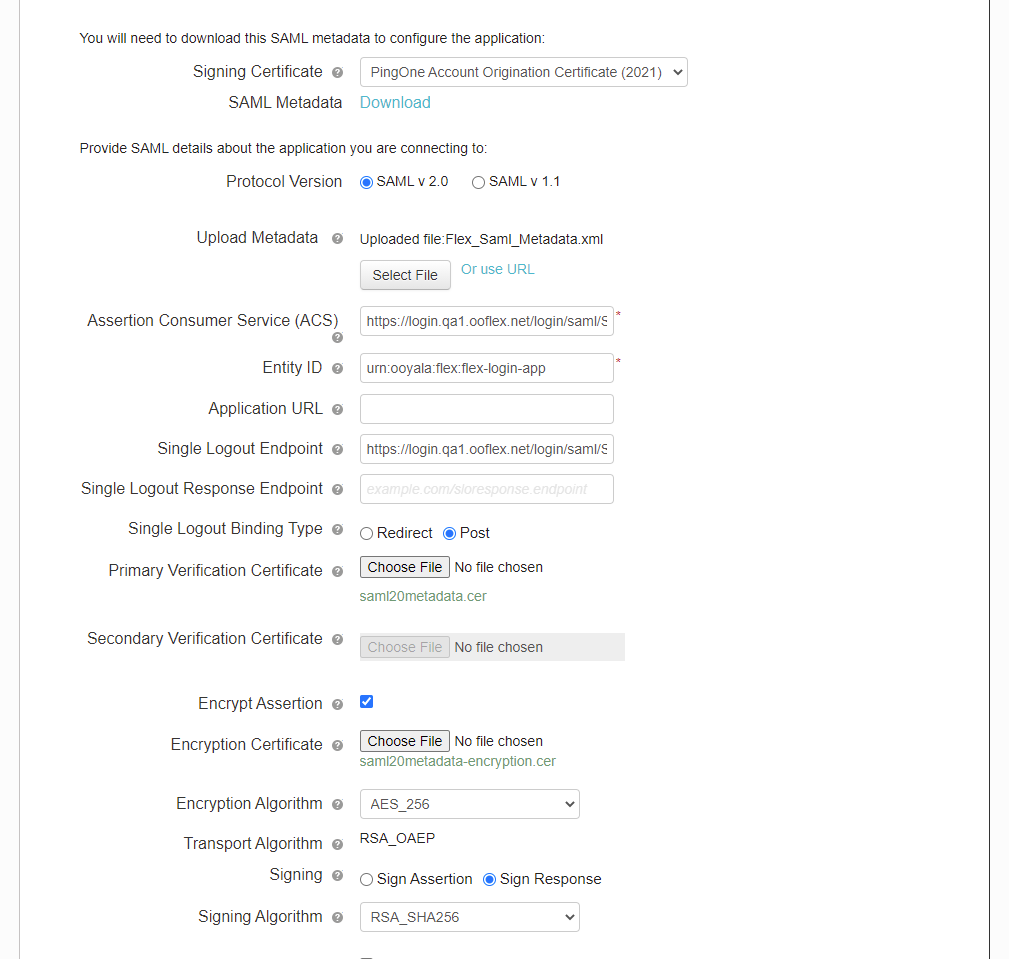
A few configuration parts need to be manually set, as per the screenshot below, including:
- providing the Application URL (required for IdP-initiated login journeys), to the appropriate value for your
environment, something like
https://{account}.{your-flex-deployment.com}; - setting the Encrypt Assertion flag as you prefer (Flex is agnostic).
- configuring Signing to Sign Assertion;
- disabling the Force Re-Authentication flag (unless you want the user to be forced to log in every time).
Notes:
- The Application URL will not be configurable at any stage beyond this one, so take care when setting it. This value will be used as the Default RelayState.
3. SSO Attribute Mapping

Configure the 5 attributes as shown in the below image, replacing the literal value for flexAccountUuid with the Flex account UUID you identified earlier.

Review configuration
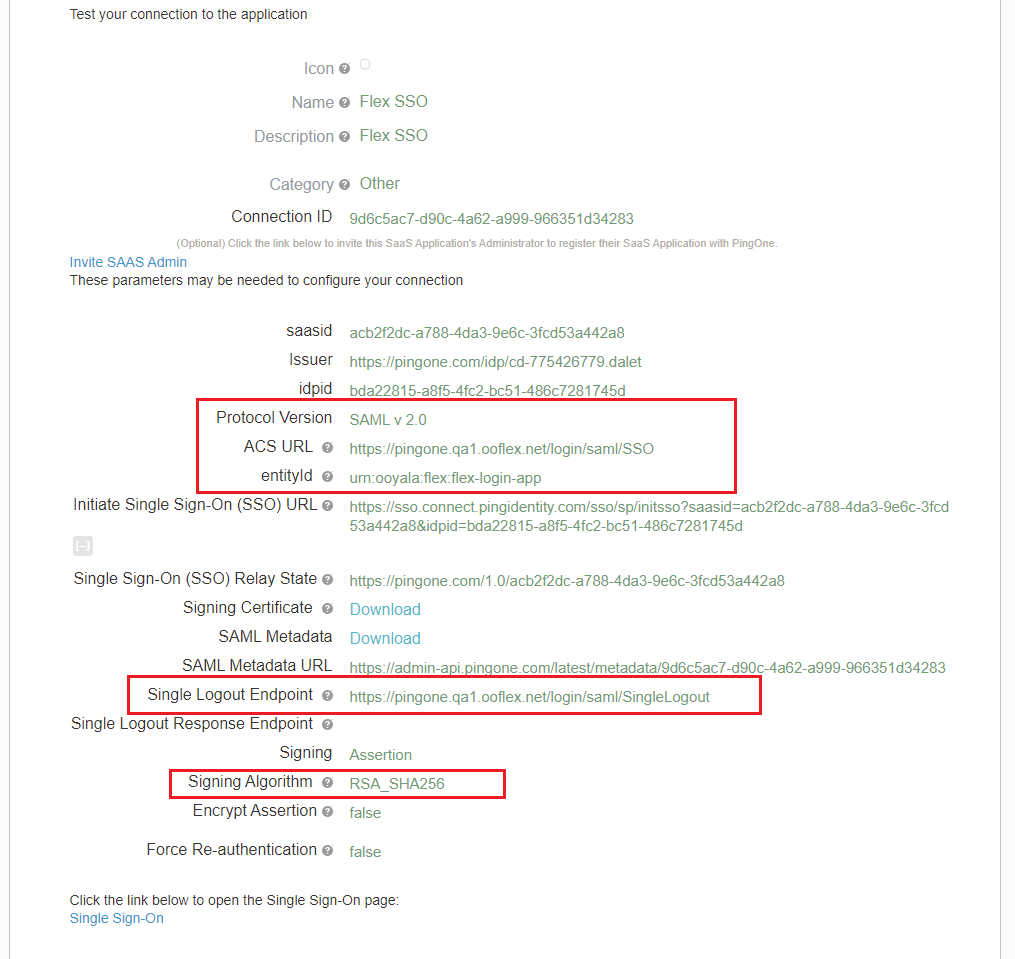
Keep clicking on next/continue button, until the Review Setup screen appears. Take care to verify that all of ACS URL, entityId, Single Logout Endpoint, and Signing Algorithm are set correctly for your environment; these fields are highlighted in the screenshot below.
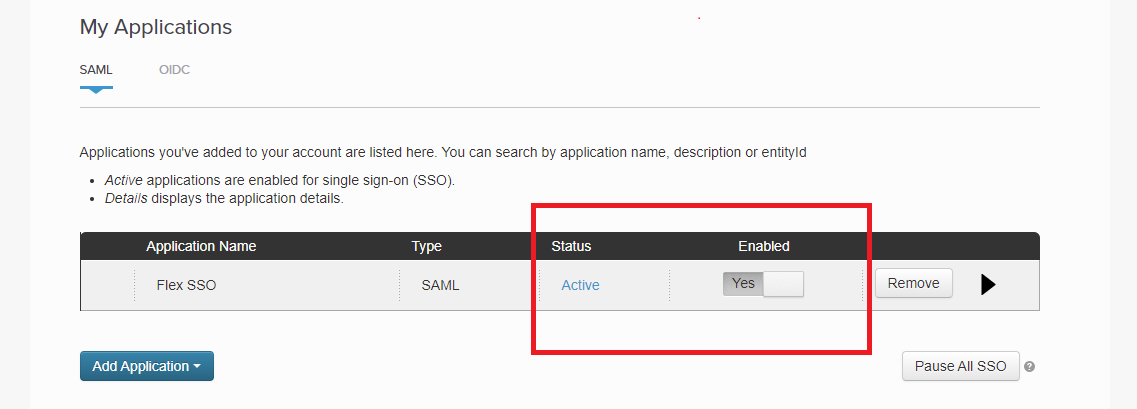
After completing the configuration setup, make sure the new application is Enabled.
This completes the SAML setup on the PingOne side. There are two ways to consume it, either dynamically via SAML Metadata URL, or statically with SAML Metadata XML. Flex supports both.
Click on the application from listing page it will display review configuration screen.
Obtain the IdP Metadata URL
Copy the value of SAML Metadata URL, keeping it safe for use in the Flex configuration steps below.

Obtain the IdP Metadata XML
Click on the Download link that appears beside SAML Metadata.
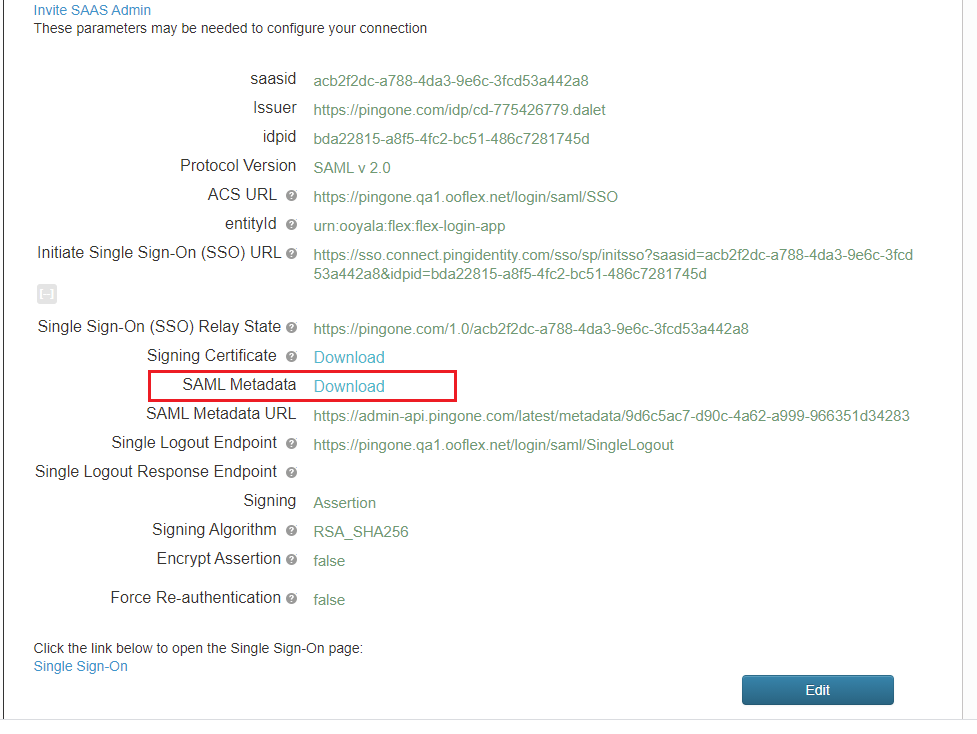
Keep the downloaded XML content for use in the Flex configuration steps below.
Add test users (only if required)
Navigate to the USERS tab, click on the Add Users button and select Create New User.
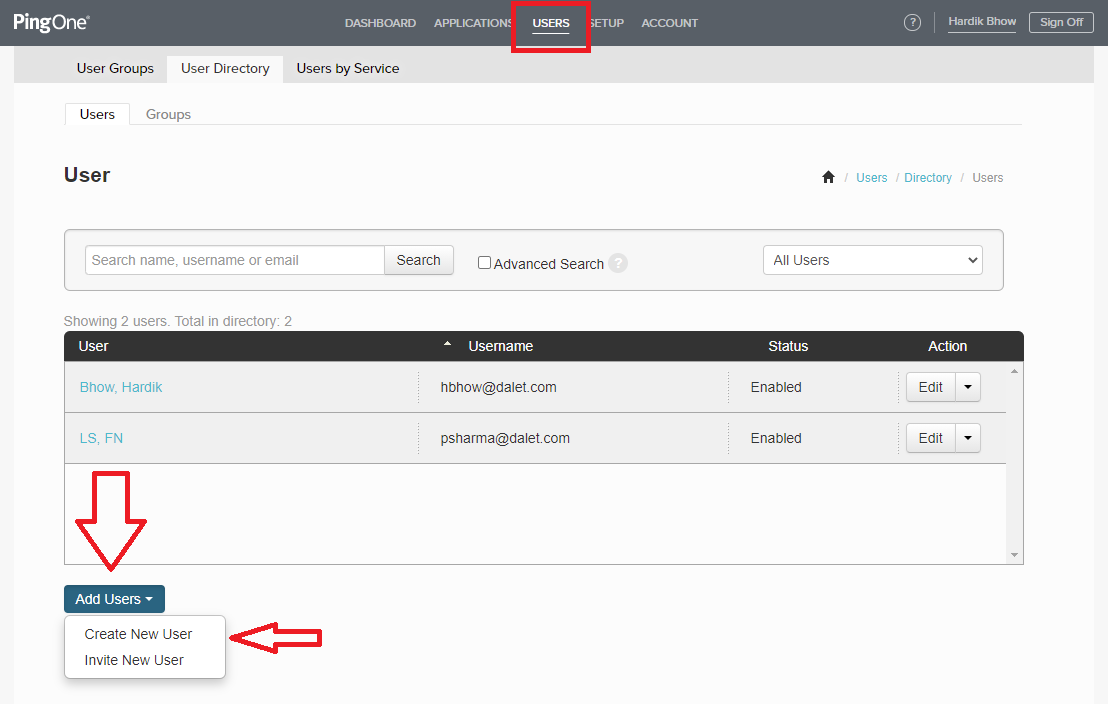
Provide the mandatory details & save it.
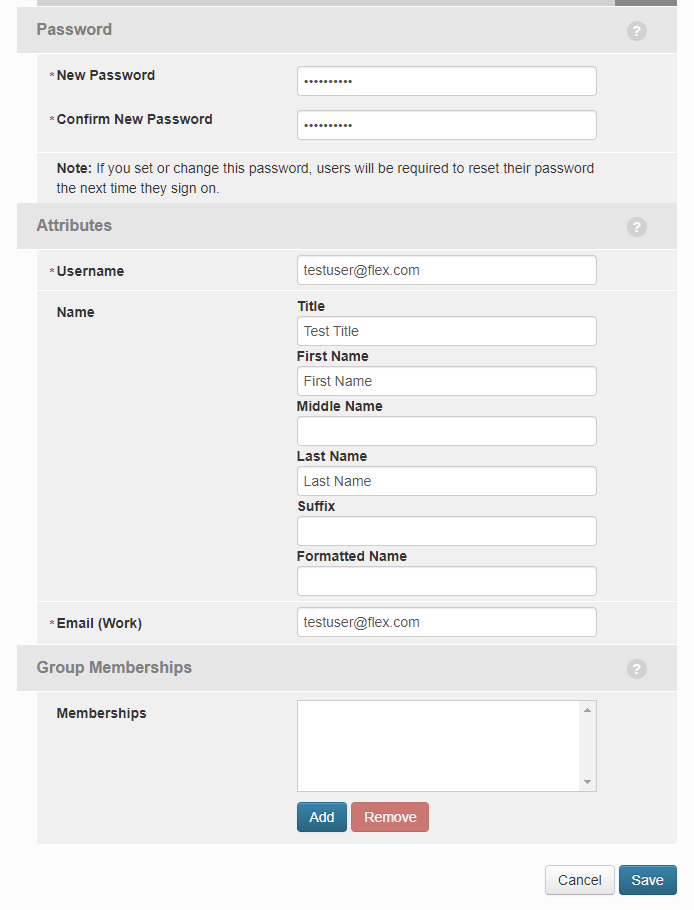
After this point, the user is ready to be used for testing.
Configuration steps (Flex side)
- Log into the Flex account to which you wish to link the IdP.
- On the Account Details page, click the Metadata sub-tab and expand the External Authentication section. Specify values for both the Default Role and Default Owner fields.
- Expand the SAML Configuration section. Choose whether you wish to redirect to IdP login page automatically, and enter the IdP Display Name to be used on the login page (which will only be visible if IdP Redirect is set to No).
- Optionally, Enable IdP to Flex Group membership sync. (For this to work correctly, Groups should be configured in Flex with names matching any relevant Groups configured in PingOne.)
- In the SAML Metadata Configuration section, provide either the static IdP metadata (recommended) or the URL from which the IdP metadata can be dynamically retrieved.
- Click Save, to save the configuration.
- Click Enable, to enable the account.
- In another browser, or an incognito window, navigate to Flex. The login page should either redirect to your IdP, or provide an appropriately-titled button allowing you to log in through the IdP, depending on your configuration choices above.