Dalet Flex documentation has moved!
This page is no longer actively maintained. For the latest documentation, please visit us at our new support portal: https://support.dalet.com
Active Directory Federation Services (AD FS) Integration
Configuring Active Directory Federation Services (AD FS) as a SAML identity provider
Notes:
- This guide has been created with the assumption that users have a certain level of familiarity with SAML. Below are the steps for configuring SAML using AD FS as an IdP (identity provider).
- To configure things on the AD FS side, you need to have admin permissions for the AD FS Management Tool.
- To configure things on the Flex side, you need to have admin permissions in the Flex account to which you wish to link the IdP.
- SAML integration with AD FS is supported from Flex version 2020.12.0 onwards.
- Refer to the IdP-agnostic information here to obtain information from Flex.
Configuration steps (AD FS side)
The following steps are performed within the AD FS Management Tool.
1. Add Relying Party Trust
Add a Relying Party Trust.
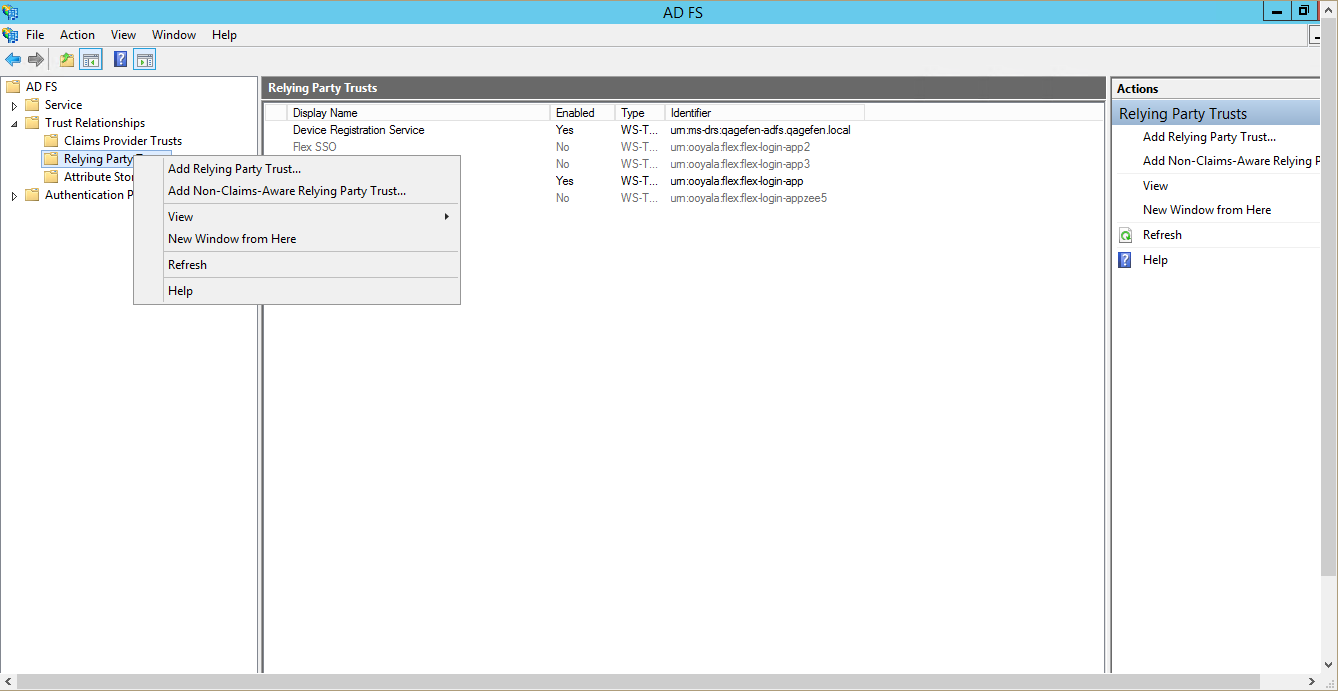
For “Select Data Source”, import the Flex SAML Metadata.
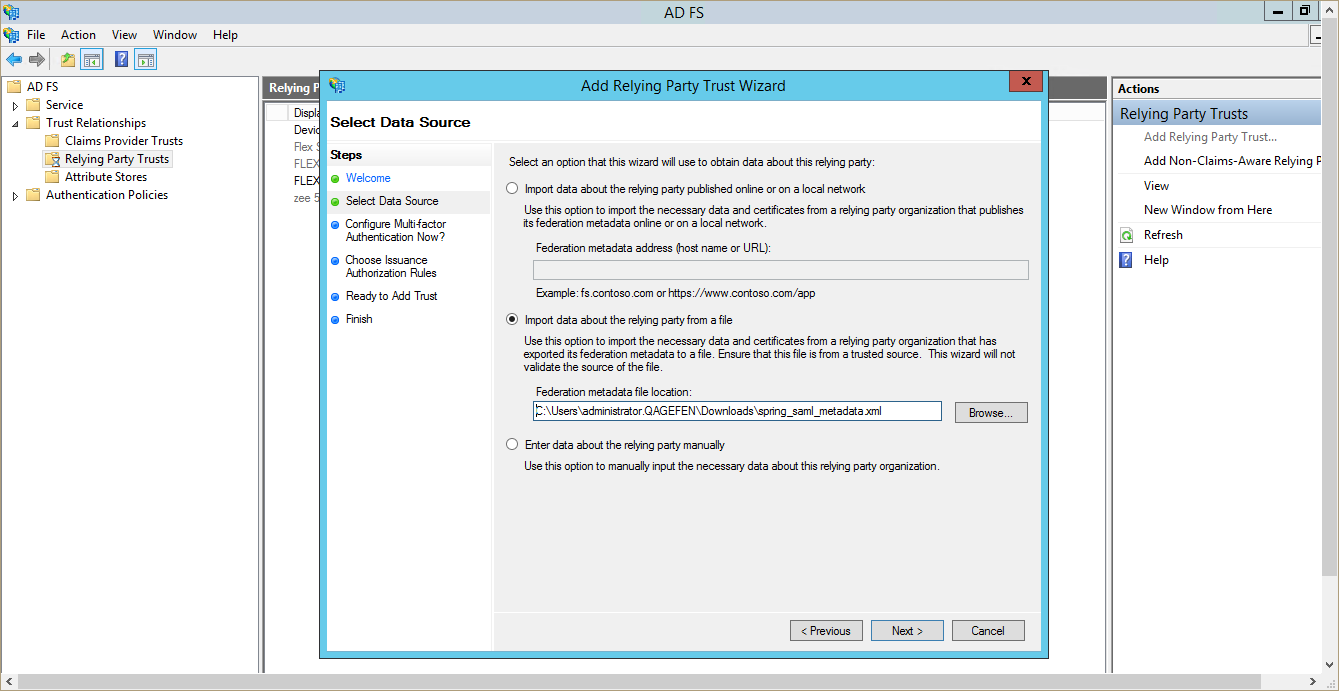
Specify a Display Name
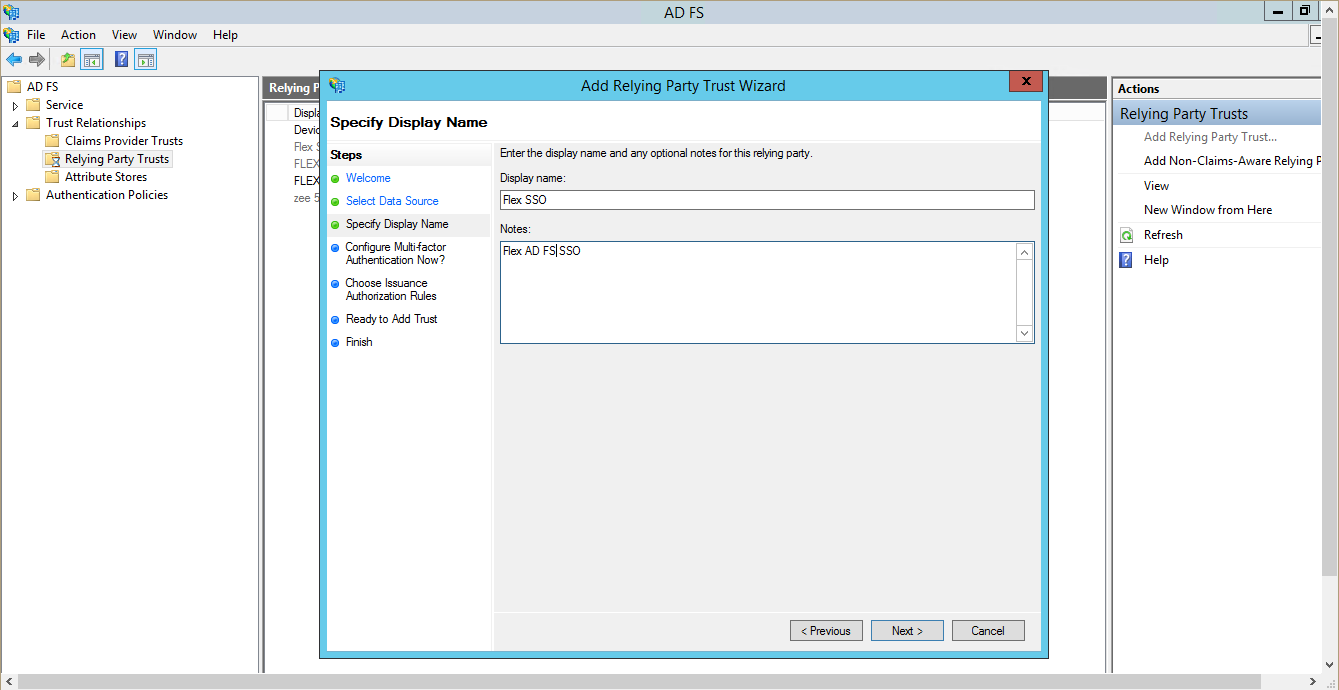
Keep clicking the next button, leaving default options selected, until the finish screen (close button) appears.
2. Verify SAML Identifier
Right click on Relying Party Trust & select Properties, and navigate to the Identifiers Tab.
urn:ooyala:flex:flex-login-app should be present under relying party identifier list.

Note: Each identifier for a relying party trust must be unique across all relying party trusts in AD FS configuration. It will not allow to create a new relying party trust if the same identifier already exists in any of previously created relying party trusts.
3. Update Relying Party Trust configuration
Once the Relying Party Trust has been added successfully, a few configuration parts need to be updated.
Right click on Relying Party Trust & select Properties, and navigate to the Endpoints Tab. The fields highlighted in the screenshots below (URL, Index, Binding, Default) should all be set appropriately for your environment, according to the guidelines in the table underneath.
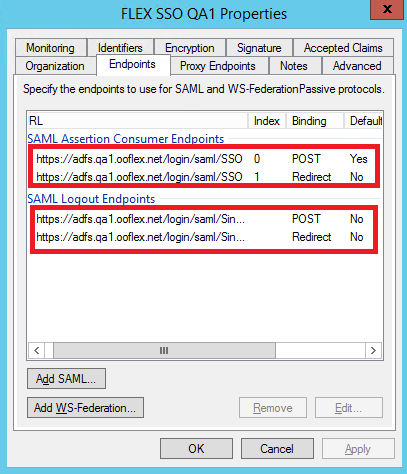
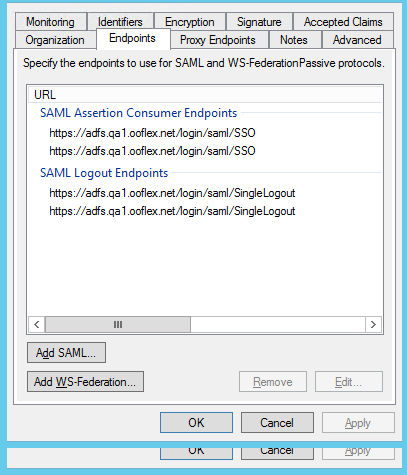
| Name | URL | Index | Binding | Default |
|---|---|---|---|---|
| SAML Assertion Consumer Endpoints - POST | like https://{account}.{your-flex-deployment.com}/login/saml/SSO |
0 | POST | Yes |
| SAML Assertion Consumer Endpoints - Redirect | like https://{account}.{your-flex-deployment.com}/login/saml/SSO |
1 | Redirect | No |
| SAML Logout Endpoints - POST | like https://{account}.{your-flex-deployment.com}/login/saml/SingleLogout |
POST | No | |
| SAML Logout Endpoints - Redirect | like https://{account}.{your-flex-deployment.com}/login/saml/SingleLogout |
Redirect | No |
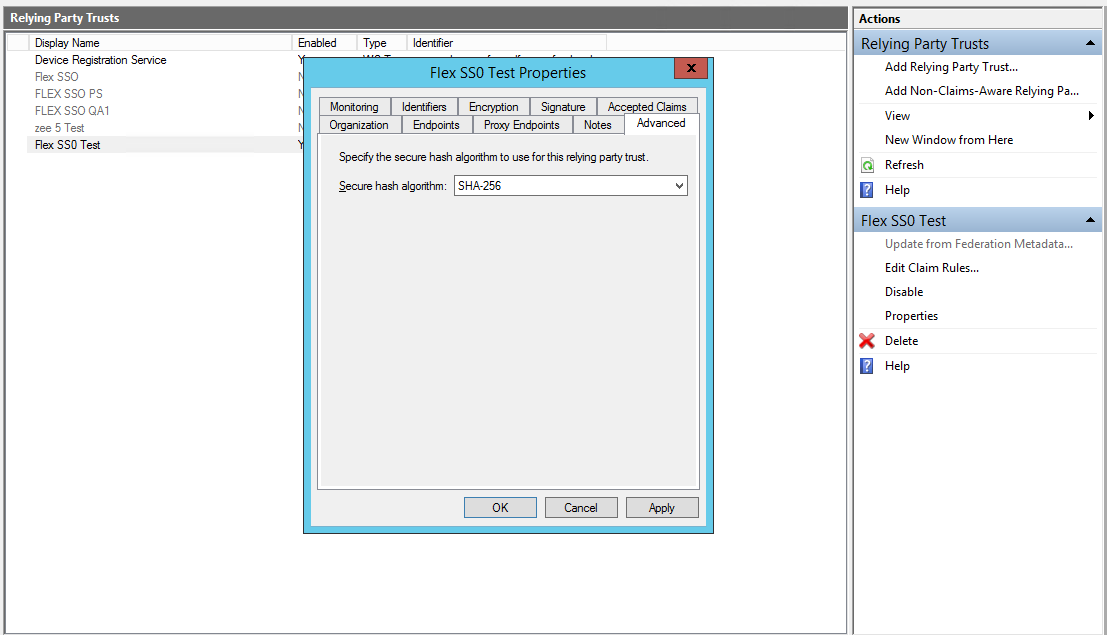
Navigate to the Advanced tab. The Secure hash algorithm field should be set to SHA-256.
4. Add Claims Rules
Note: It is important to pay very close attention to spelling and capitalization of all of these, and also to create the claims in the order specified below (particularly important for the last three).
Using Add Rule, create a ‘Send Claims Using a Custom Rule’ claim for flexAccountUuid, configured as per the screenshot below, using the Flex account UUID you identified earlier.
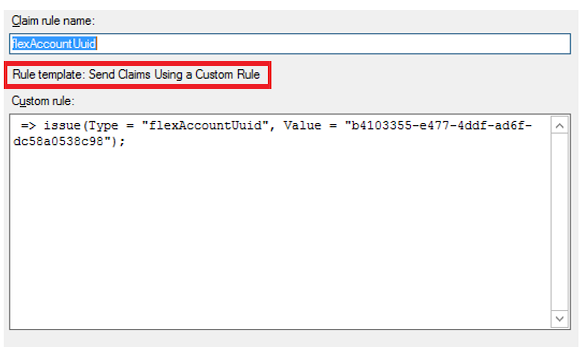
Syntax => issue(Type = “flexAccountUuid”, Value = “");
Create a ‘Send LDAP Attributes as Claims’ claim for login, configured as per the screenshot below.

Create a ‘Send LDAP Attributes as Claims’ claim for firstName, configured as per the screenshot below.
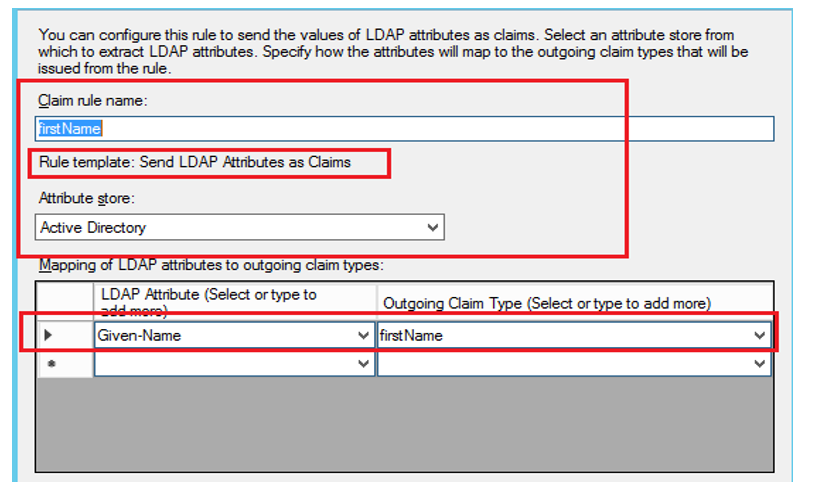
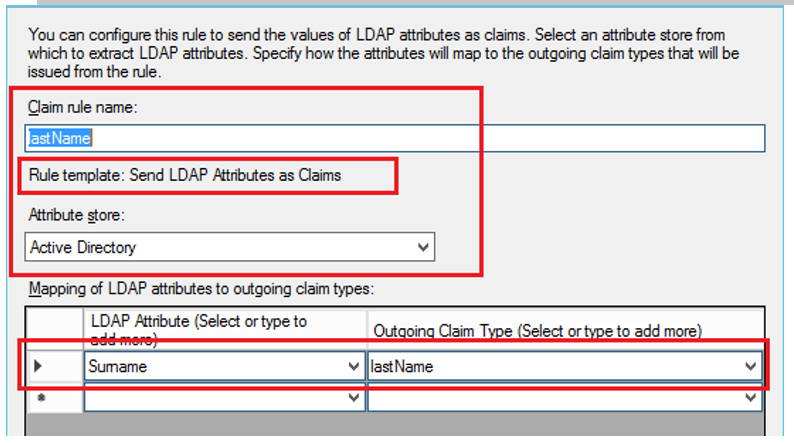
Create a ‘Send LDAP Attributes as Claims’ claim for lastName, configured as per the screenshot below.
Create a ‘Send LDAP Attributes as Claims’ claim for Make Email Address Available For Other Claims, configured as per the screenshot below.
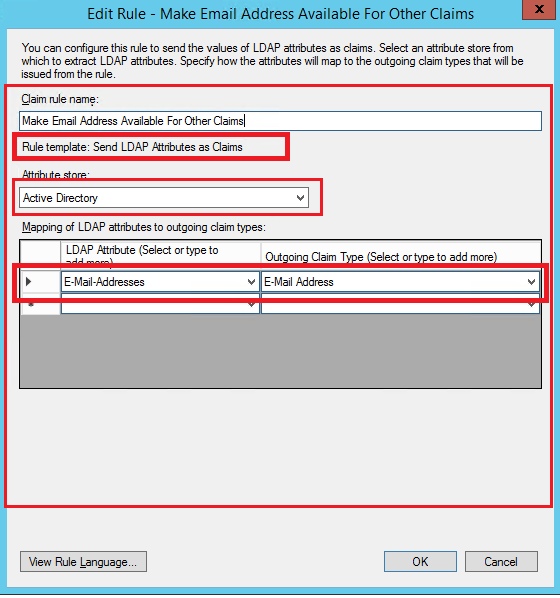
This is so that the two subsequent claims can both make use of the same property.
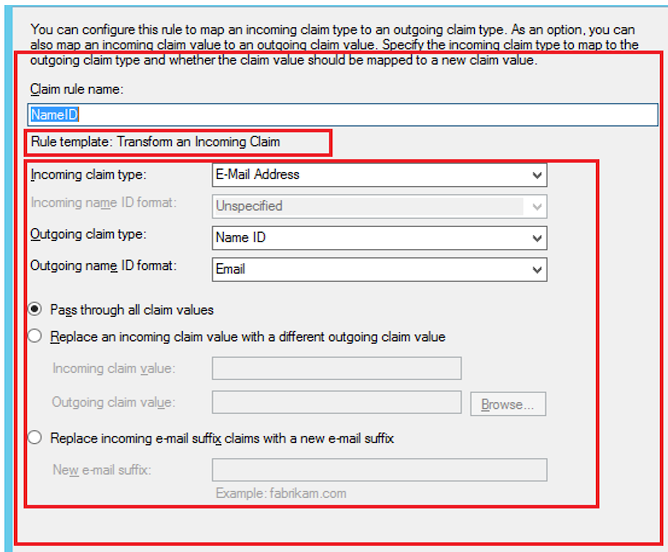
Create a ‘Transform an Incoming Claim’ claim for NameID, configured as per the screenshot below.
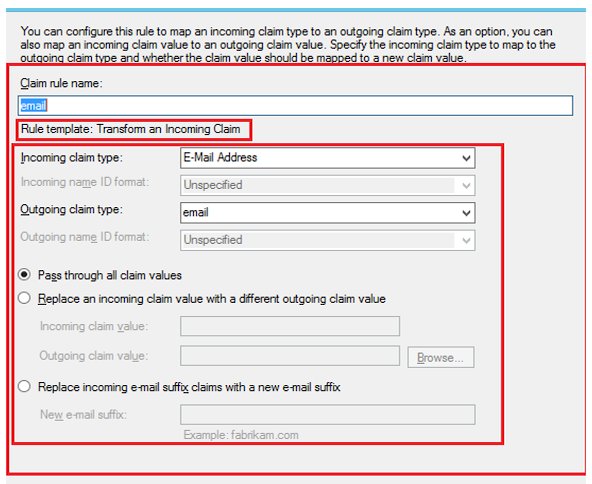
Create a ‘Transform an Incoming Claim’ claim for email, configured as per the screenshot below.
5. Add test users (only if required)
If you need to define a new user in the AD FS server for testing purposes, make sure all details required for the claims above have been properly entered.
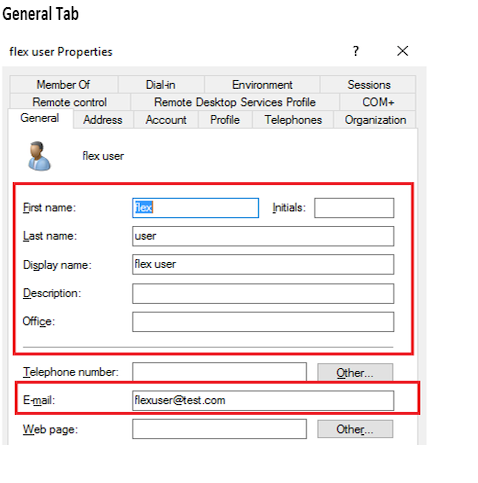
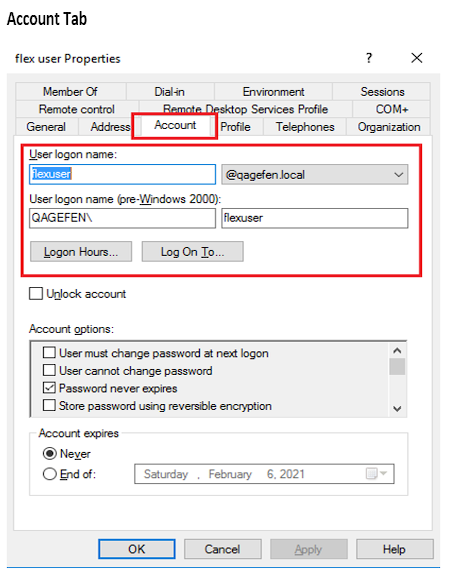
6. Obtain the IdP Metadata XML
Now that the AD FS configuration is in place, we need to obtain the IdP metadata XML.
- Open powershell command prompt & execute -
Get-AdfsEndpoint. This will provide all relevant information; check for protocol Federation Metadata, take the Fullurl & copy it into the address bar of your web browser. The URL should be something like:- https://your-adfs-server/FederationMetadata/2007-06/FederationMetadata.xml
- On hitting the url, the FederationMetadata.xml file will be downloaded.
7. Modify the IdP Metadata XML
The IdP Metadata XML provided by AD FS is unfortunately not fully compliant with SAML standards. Therefore, for it to be used in Flex, some manual customization is needed.
This is an important step; if the XML is not edited correctly, not only will SAML not function, but it could potentially cause the Flex Login App to stop functioning. After editing this file, we recommended you securely validate the XML (do not use a SAML Metadata XML Validator; even the un-edited version will fail).
The XML metadata block for ds:Signature needs to be removed.
Towards the top of the XML file, you’ll find the line:
<ds:Signature xmlns:ds="http://www.w3.org/2000/09/xmldsig#">
This XML element and all its contents must be removed, down to and including:
</ds:Signature>
Similarly, the XML metadata blocks for RoleDescriptor (of which there may be more than one) and SPSSODescriptor need to be removed.
Save the modified XML file as it will be needed in the next section.
Configuration steps (Flex side)
- Log into the Flex account to which you wish to link the IdP.
- On the Account Details page, click the Metadata sub-tab and expand the External Authentication section. Specify values for both the Default Role and Default Owner fields.
- Expand the SAML Configuration section. Choose whether you wish to redirect to IdP login page automatically, and enter the IdP Display Name to be used on the login page (which will only be visible if IdP Redirect is set to No).
- Optionally, Enable IdP to Flex Group membership sync. (For this to work correctly, Groups should be configured in Flex with names matching any relevant Groups configured in AD FS.)
- In the SAML Metadata Configuration section, provide the modified static IdP metadata. As noted earlier, using a URL for dynamic IdP metadata retrieval is not possible with AD FS.
- Click Save, to save the configuration.
- Click Enable, to enable the account.
- In another browser, or an incognito window, navigate to Flex. The login page should either redirect to your IdP, or provide an appropriately-titled button allowing you to log in through the IdP, depending on your configuration choices above.
Notes:
- While logging in through the AD FS SAML login screen, the user has to enter (userName + @ + domainName) as their username - e.g. flextest@myadfs.local