Dalet Flex documentation has moved!
This page is no longer actively maintained. For the latest documentation, please visit us at our new support portal: https://support.dalet.com
Event Handlers
When events are generated they are stored by the Events service and then forwarded to the Event Handler service. Event handlers can consume and process events based on filtering by the event type and properties. An event handler consists of a filter configuration and a handler. The filter is a rule that matches against specific types of events. The handler responds to the filtered events and processes them based on the configuration. An example of a handler would be the Job Executor. Event handlers can also be configured via the Flex API.
Event Handler Object Properties
| Property | Support | Explanation |
|---|---|---|
| Scope | Account | The scoping of this object |
| Visibility |  |
Whether the object supports visibility |
| Plugins | |
Supports plugins |
| Extended Config. | |
Whether the object has an extended configuration tab |
| Scripting | |
Whether the object can be configured using scripting |
| Enable / Disable | |
Whether the object can be enabled and disabled |
| Start / Stop | |
Whether the object can be started and stopped |
| Copy | |
Whether the object can be copied |
| Export / Import | |
Whether the object can be exported and imported |
| Delete | |
Whether the object can be deleted |
| Unique Name | |
Whether the object name must be unique within its scope |
| Variants |  |
Whether the object supports Variants |
Creating a New Event Handler
-
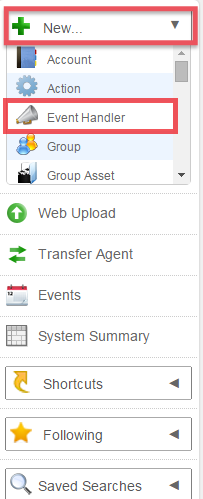
On the toolbar, click New and select Event Handler from the drop down menu.
-
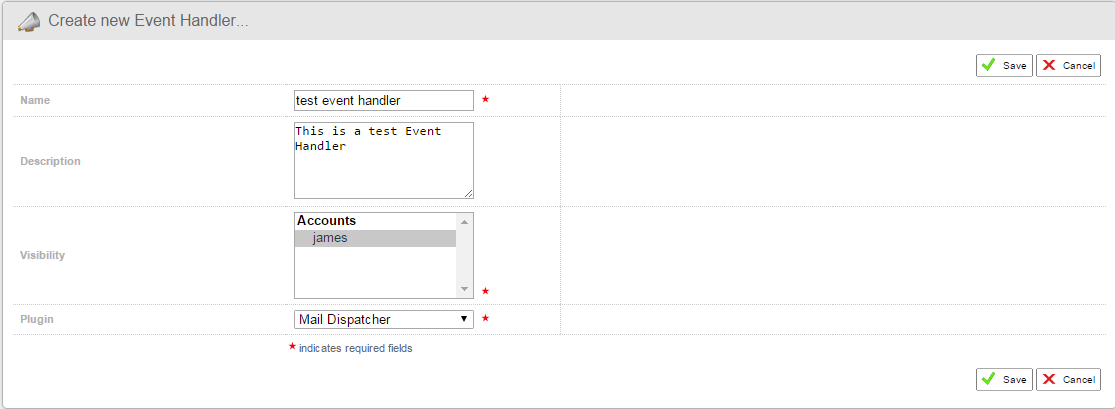
In the Create new Event Handler section, fill in the relevant details such as name, visibility, and plugin.
-
Click Save to finalise.
-
Once you’ve created your event handler, select the Configuration tab in order to see the values that can be set.
Event Handler Expressions
We have moved event handling to the Event Handler service. Expressions must now be Spring expressions (#{<expression>}).
Spring expressions can also contain metadata variables.
Event handler expressions can be added as part of the filter or in configuration fields when the expression
icon is toggled. Filter expressions should resolve to a boolean value while expressions on the configuration should be written as
directed by the field description. Usually these would resolve to an ID.
Examples of accessing event properties using expressions:
| Expression | Description |
|---|---|
#{event.objectIdentifier} |
The object identifier. This will be an ID or UUID, depending on the object type |
#{event.workspaceId} |
The workspace associated with the event |
#{event.eventData['key'].value == "<some_value>"} |
Access the data value of any event data by key. This would resolve to a boolean |
#{event.eventData['key'].value != null} |
Check that the data value exists |
#{event.accountId} |
The account associated with the event |
If you need to access the name or other fields on the account (or workspace, object, objectType, user, variant) object, they can be used as below.
#{event.object.name == "<name>"}
#{event.account.name == "<name>"}
#{event.account.accountWorkspaceId == <id>}
#{event.workspace.name == "<name>"}
#{event.user.name == "<name>"}
#{event.user.accountId == <id>}
#{event.objectType.name != "job"}
#{event.asset.variant.name == "<some_variant_name>"}
#{event.asset.variant.id == <id>}
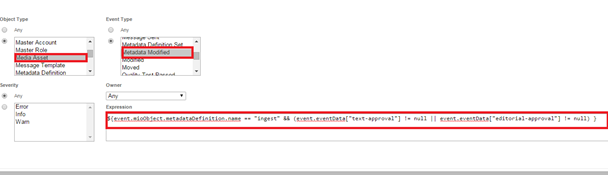
Additionally, events can be filtered based on metadata fields.
Whenever a metadata field is updated, the new value will be added to the eventData and can be accessed like so:
#{event.eventData["text-approval"] != null || event.eventData["editorial-approval"].value =="done" }
In addition to this, we can also resolve metadata variables. These can be used to access the metadata of an object where the field value has not been updated and so will not be present in the event data. E.g.
| Expression | Description |
|---|---|
#{"@@editorial-approval@@" == "done"} |
If we are matching a string, we should use quotes (single or double) for comparisons |
#{@@metadata-integer@@ == 123} |
Since this is an integer, we don’t need quotes. Find the first field named ‘metadata-integer’ in the metadata and then evaluate the expression |
#{@@complex-1.metadata-integer@@ == 123} |
Target a field by its path. This is useful when there are two sub-fields with the same name |
Configuring a Filter
It’s important to make your filter rules as specific as possible. Otherwise you run the risk of generating a huge number of events that could clog up external systems.
Once you have created your new event handler you must set up a filter. A filter is a rule which defines which events should be matched and passed to your event handler for processing.
None of the fields discussed below are mandatory. However it is rare that an event handler would be set up to match and process all events created within Dalet Flex.
To set your filter rules
-
Go to the filter sub-tab.
-
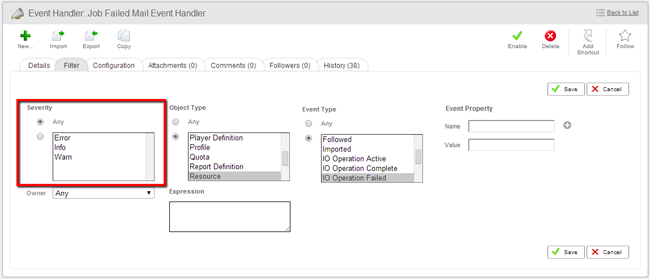
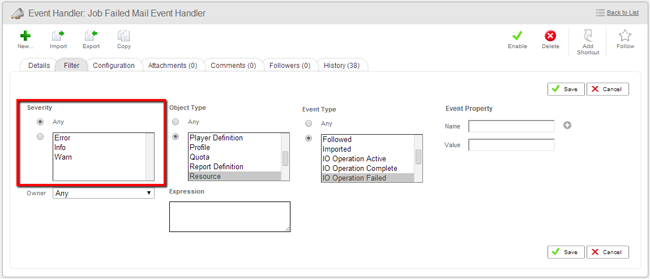
Select Severity: The Severity field allows you to filter events by severity.
-
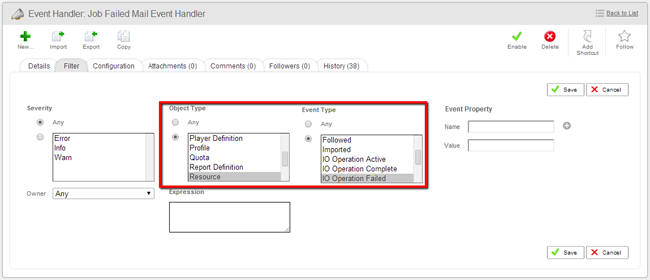
Select Event Type: Event types are filtered by the object type and then the event types supported by the chosen object type(s). First select the object types that interest you and then select the event types that are relevant to the object types you’ve selected. The event types shown are a collection of all event types associated with the object types you have selected.
-
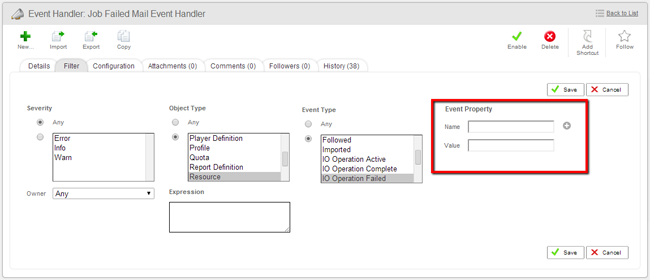
Select Event Properties: This field allows events to be filtered by their properties. Properties are name-value pairs that are associated with events. For example: Name: Username, Value: Jon.
-
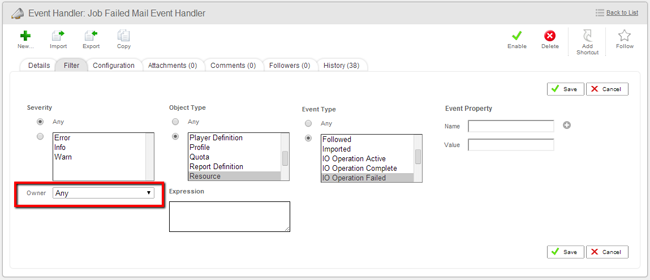
Select Owner: This field allows events to be filtered by the owner of the event. The owner is a specific Dalet Flex user.
-
We can further refine the filter criteria using Spring expressions. For example
#{event.objectType.name != "job"}
The Expression field script must return a value of either true or false. If the expression resolves to anything else it will be treated as false and thus will not meet the filter criteria.
Customising your Event Handler
To customize your event filter, follow these steps:
- Set the filter.
- Set the configuration.
You could create the following event handlers:
- Send email on failed or timed out job.
- Send email on failed resource.
- Create notification on update to a followed object.
- Create notification on comment added or attachment uploaded to an owned object.
- Create general notification on failed login.
- Send email for user account reminder.
- Send email on user added to group or workspace.
- Send email on user enabled.
- Send email on user password setting.
- Send email on quota soft limit.
- Send email on quota hard limit.
- Task assigned.
- For email type event handlers you should assign the appropriate templates.
For email type event handlers you should assign the appropriate templates.
Error Notifications
You will know if a job or resource has failed, as it will be presented on the relevant dashboard.
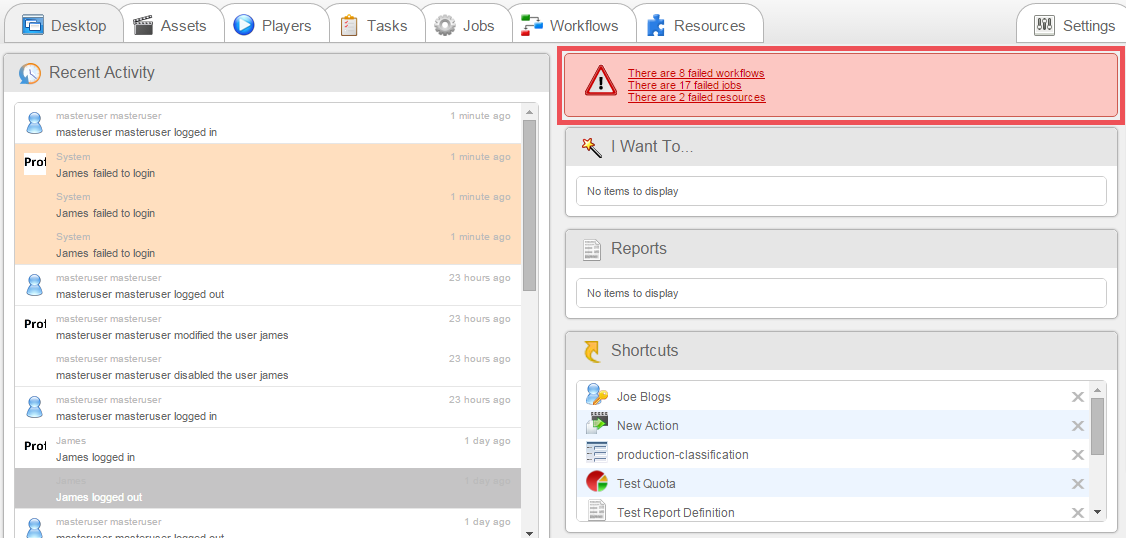
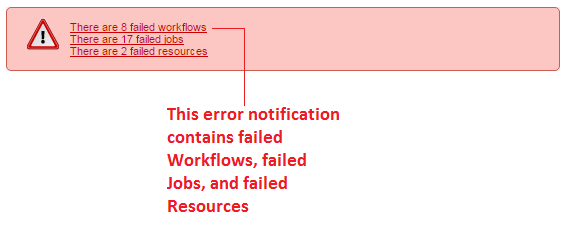
You can also set up event handlers to notify users and other systems of such failures.
Diagnosing Errors
There are two ways to diagnose errors:
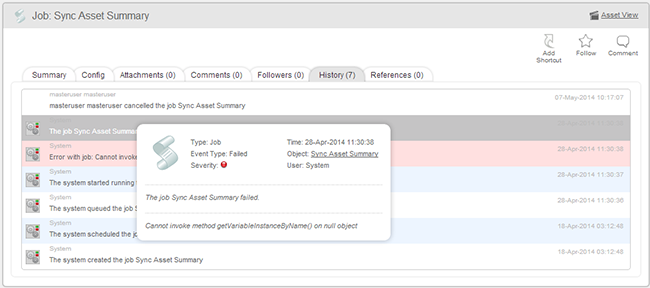
Object History
-
Rollover Failure Event: If you roll over the failed job event entry in the history, an event pop-up will appear.
-
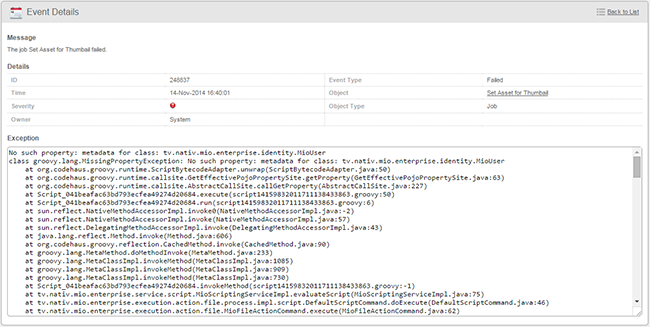
Click on the row Entry: You will be taken to an event screen with details.
Searching Events
-
Search for error events in the event search.
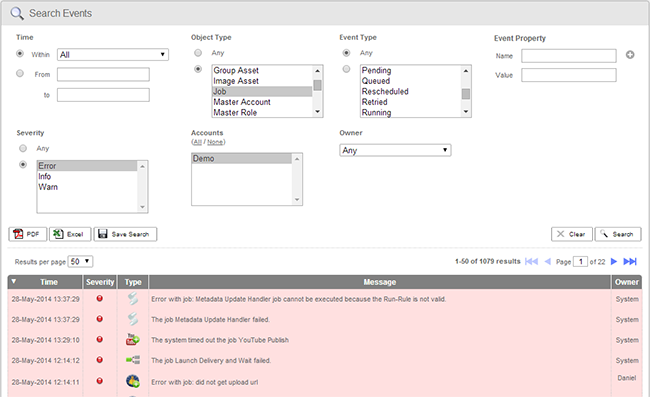
-
Click on the row Entry: You will be taken to an event screen with details.
You can copy and paste the contents of the exception field in order to send the details to your support team.