Dalet Flex documentation has moved!
This page is no longer actively maintained. For the latest documentation, please visit us at our new support portal: https://support.dalet.com
Keycloak Integration
Configuring Keycloak as a SAML identity provider
Notes:
- This guide has been created with the assumption that users have a certain level of familiarity with SAML. Below are the steps for configuring SAML using (https://www.keycloak.org/docs/latest/server_admin/#keycloak-features-and-concepts) as an IdP (identity provider).
- To configure things on the Keycloak side, you need to have access to the Keycloak admin account.
- To configure things on the Flex side, you need to have admin permissions in the Flex account to which you wish to link the IdP.
- SAML integration with Keycloak is supported from Flex version 2020.12.0 onwards.
- Refer to the IdP-agnostic information here to obtain information from Flex.
Configuration steps (Keycloak side)
The following steps need to be performed within the Keycloak admin account.
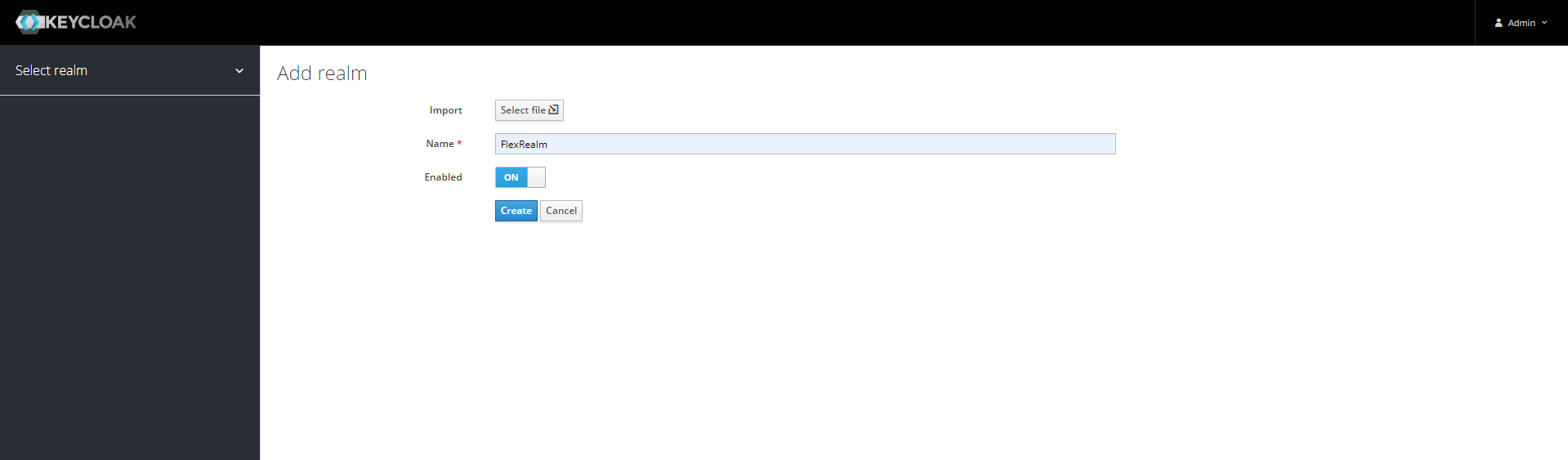
Add realm
Mouse hover on highlighted dropdown and click on Add realm button.

Enter realm name.
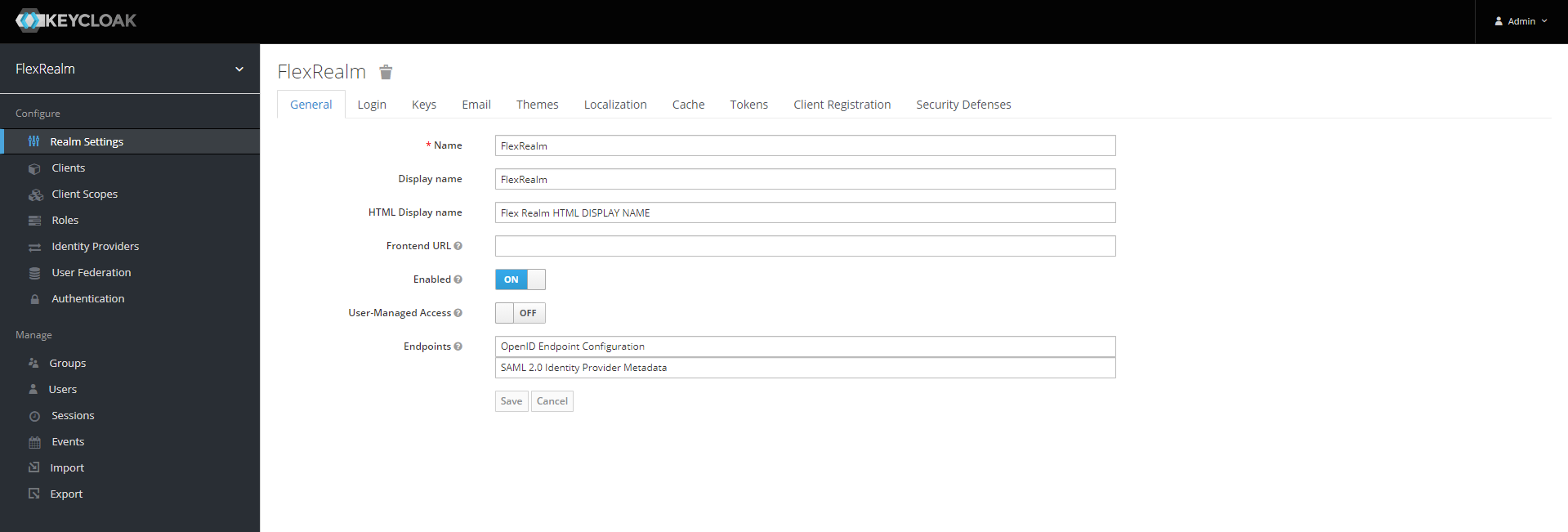
Enter realm general details.
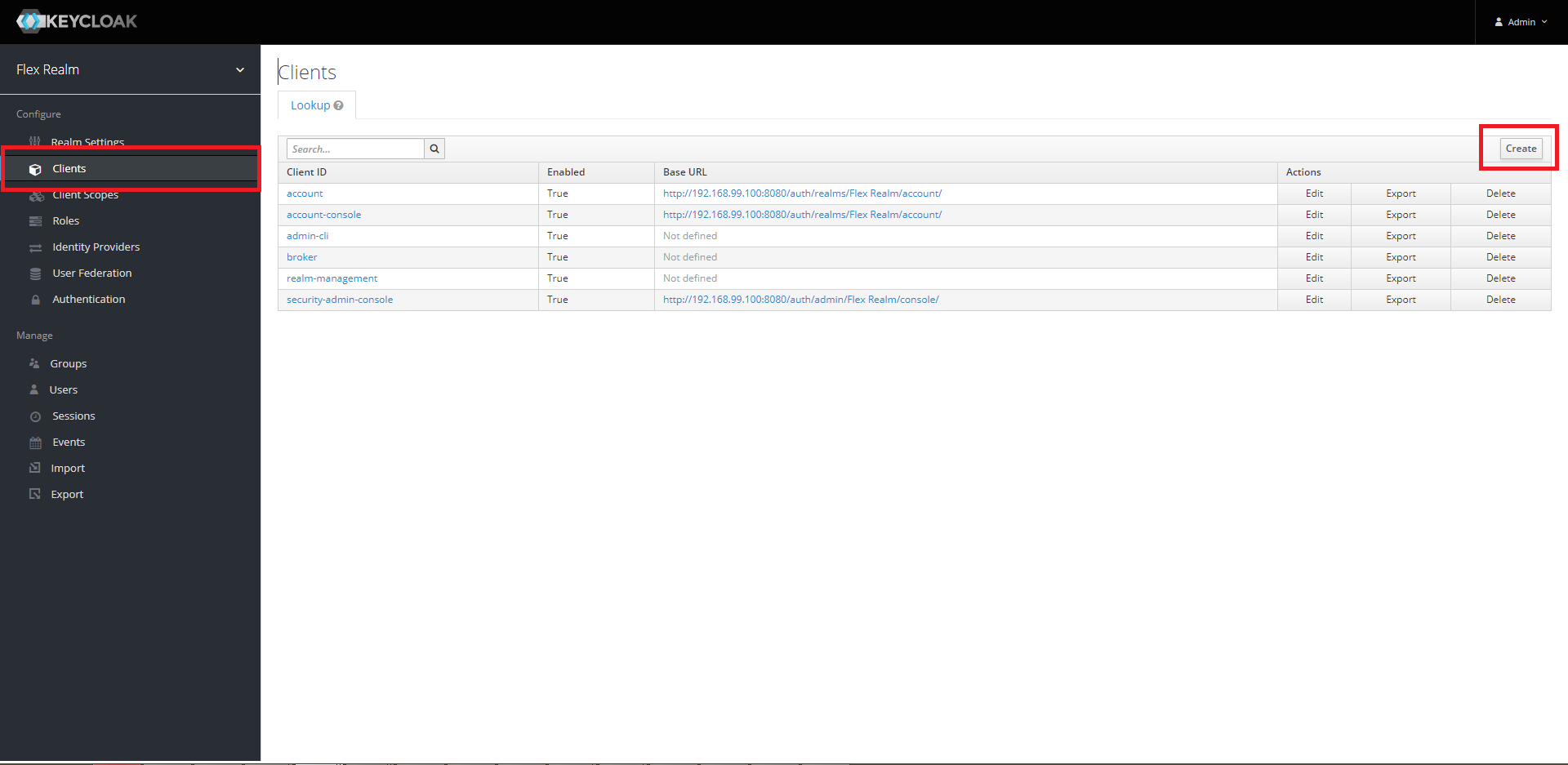
Create client
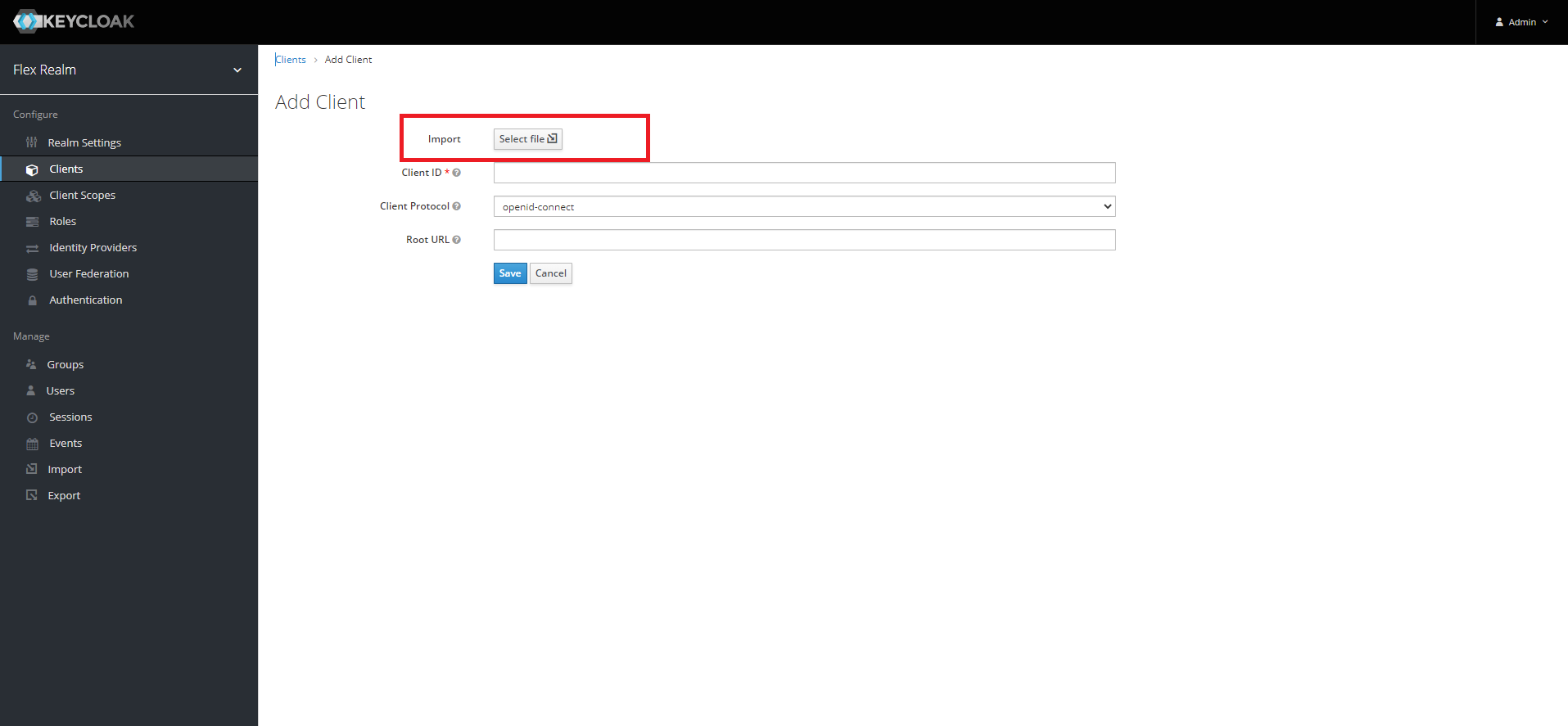
Import the Flex SAML Metadata.
Verify the highlighted field on next screen.
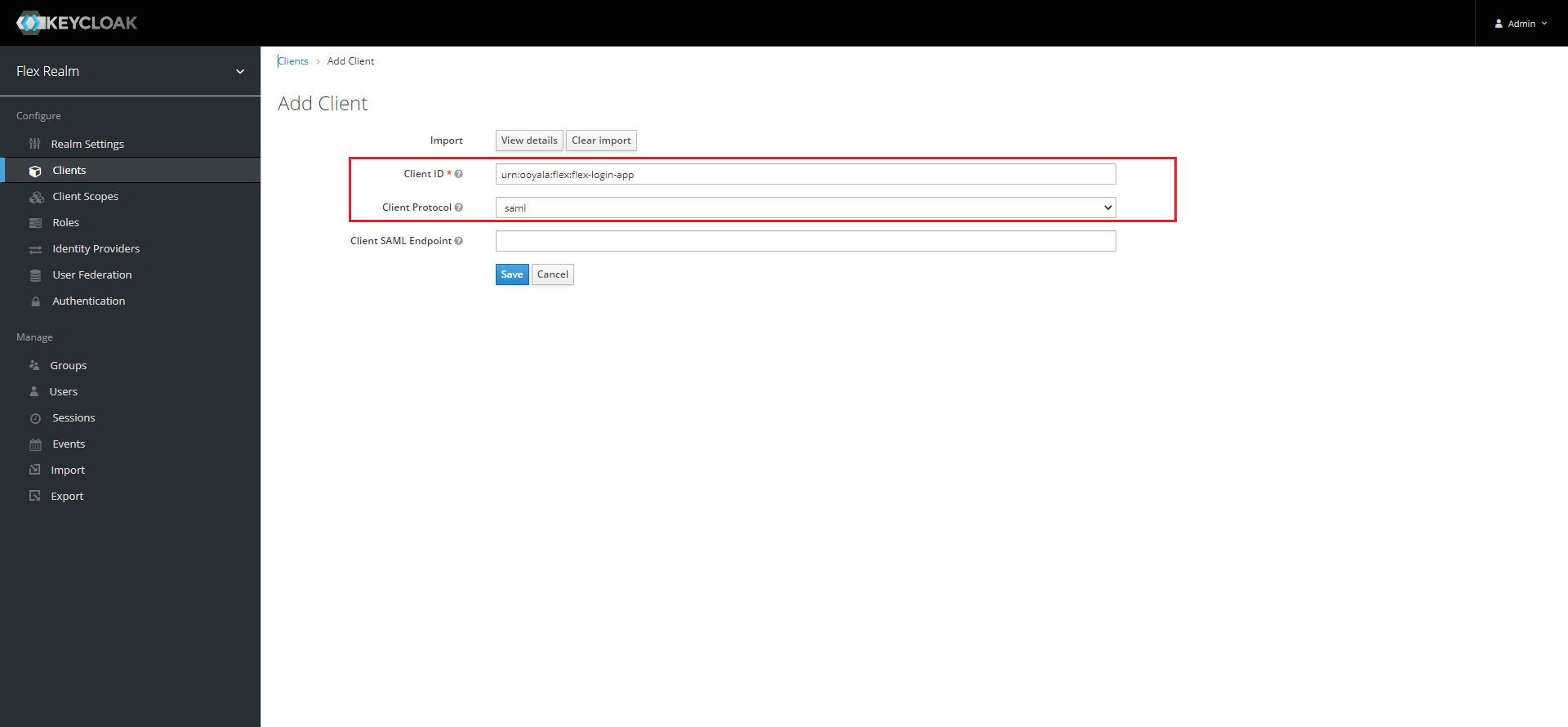
On successful import of Flex SAML Metadata, a client will get created with default values.
Expand Fine Grain SAML Endpoint Configuration.
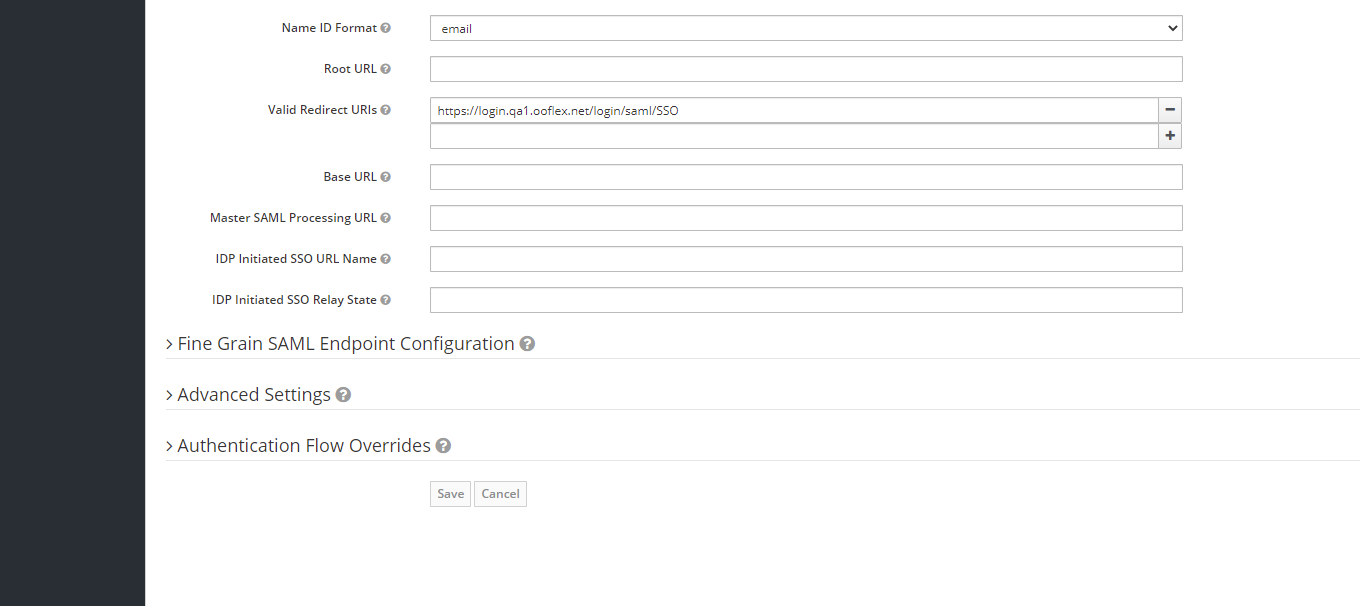
Few configuration parts need to be updated & rest of the default values should be left as same.
Highlighted URLs should be updated as per given below in table.
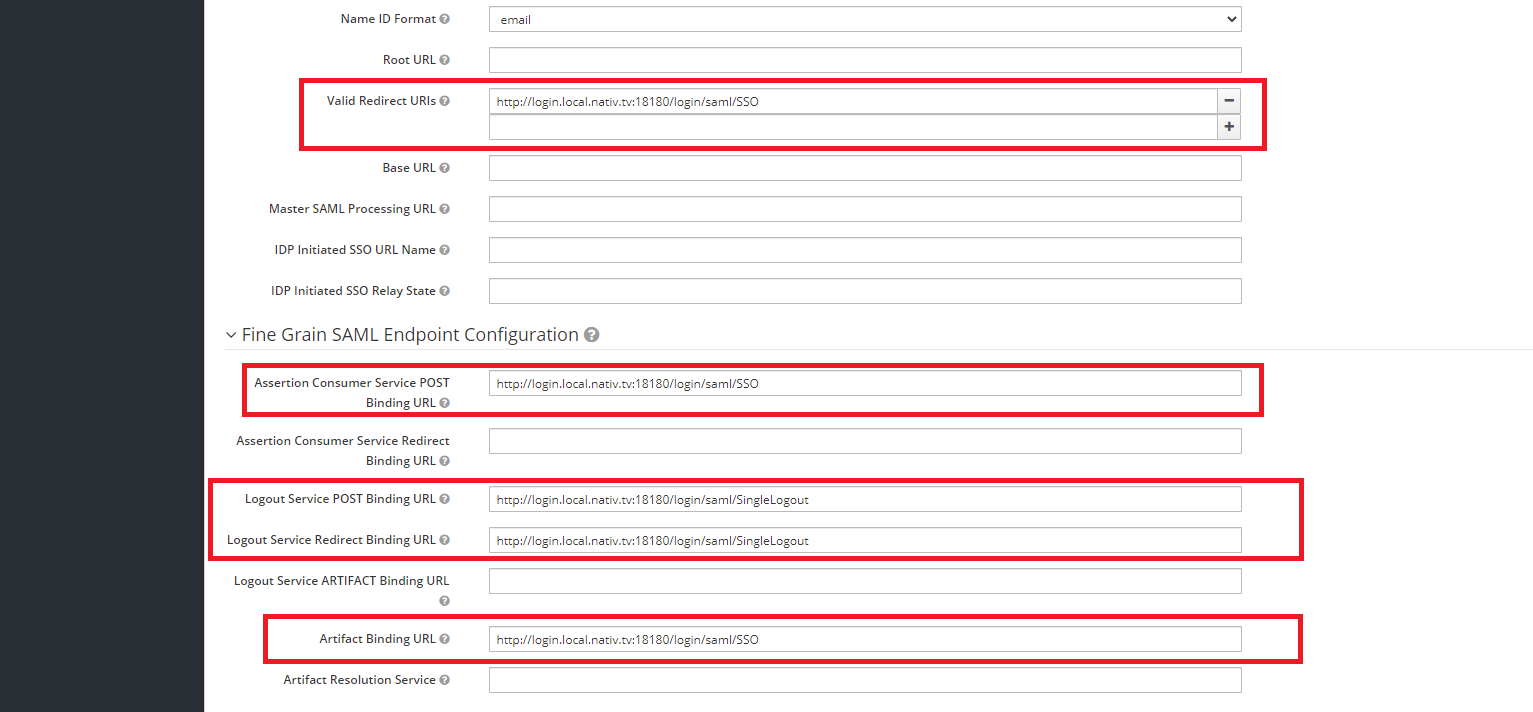
| Name | URL |
|---|---|
| Valid Redirect URIs | like https://{account}.{your-flex-deployment.com}/login/saml/SSO |
| Assertion Consumer Service POST Binding URL | like https://{account}.{your-flex-deployment.com}/login/saml/SSO |
| Logout Service POST Binding URL | like https://{account}.{your-flex-deployment.com}/login/saml/SingleLogout |
| Logout Service Redirect Binding URL | like https://{account}.{your-flex-deployment.com}/login/saml/SingleLogout |
| Artifact Binding URL | like https://{account}.{your-flex-deployment.com}/login/saml/SSO |
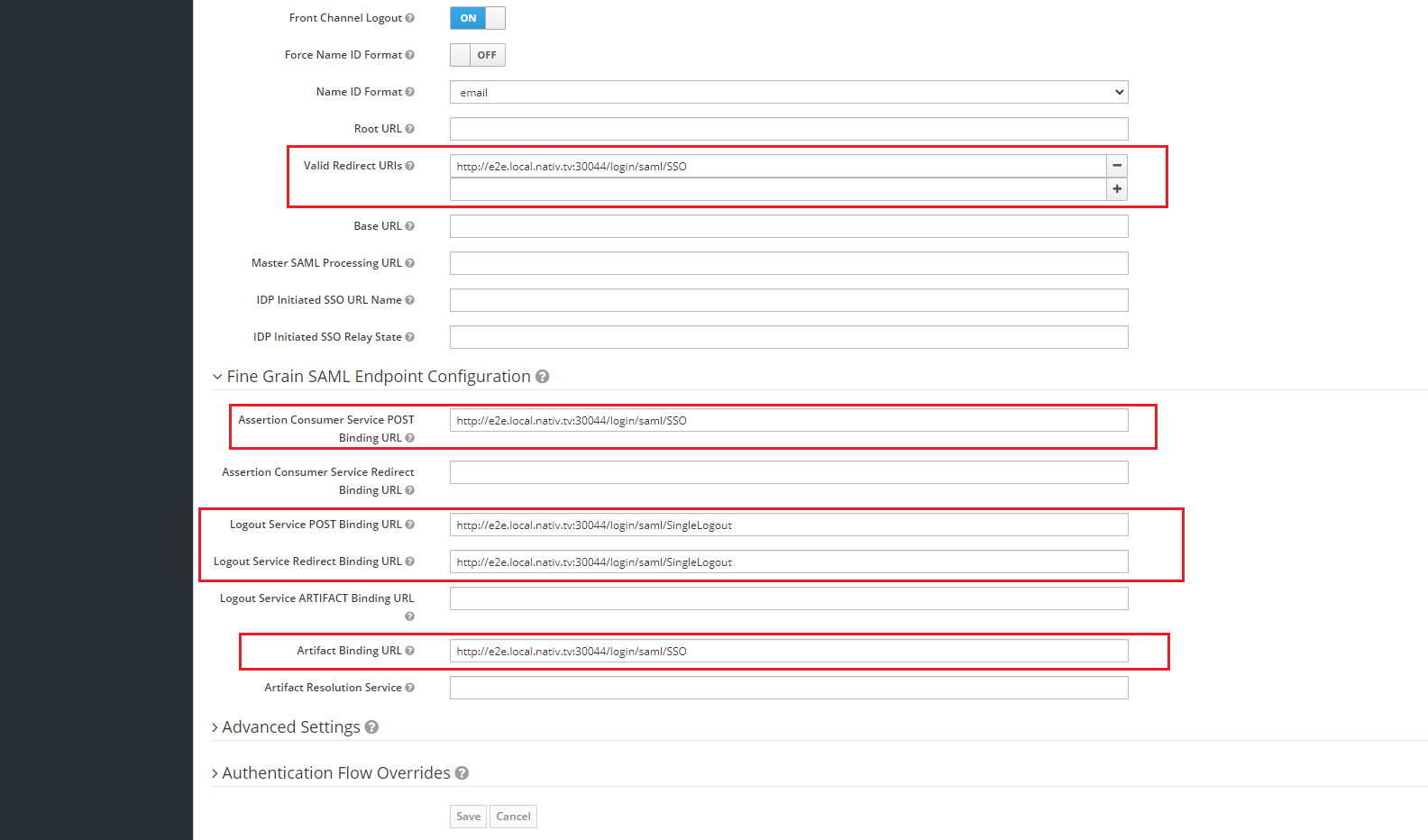
Save the configuration.
Add mappers
Navigate to mappers tab.
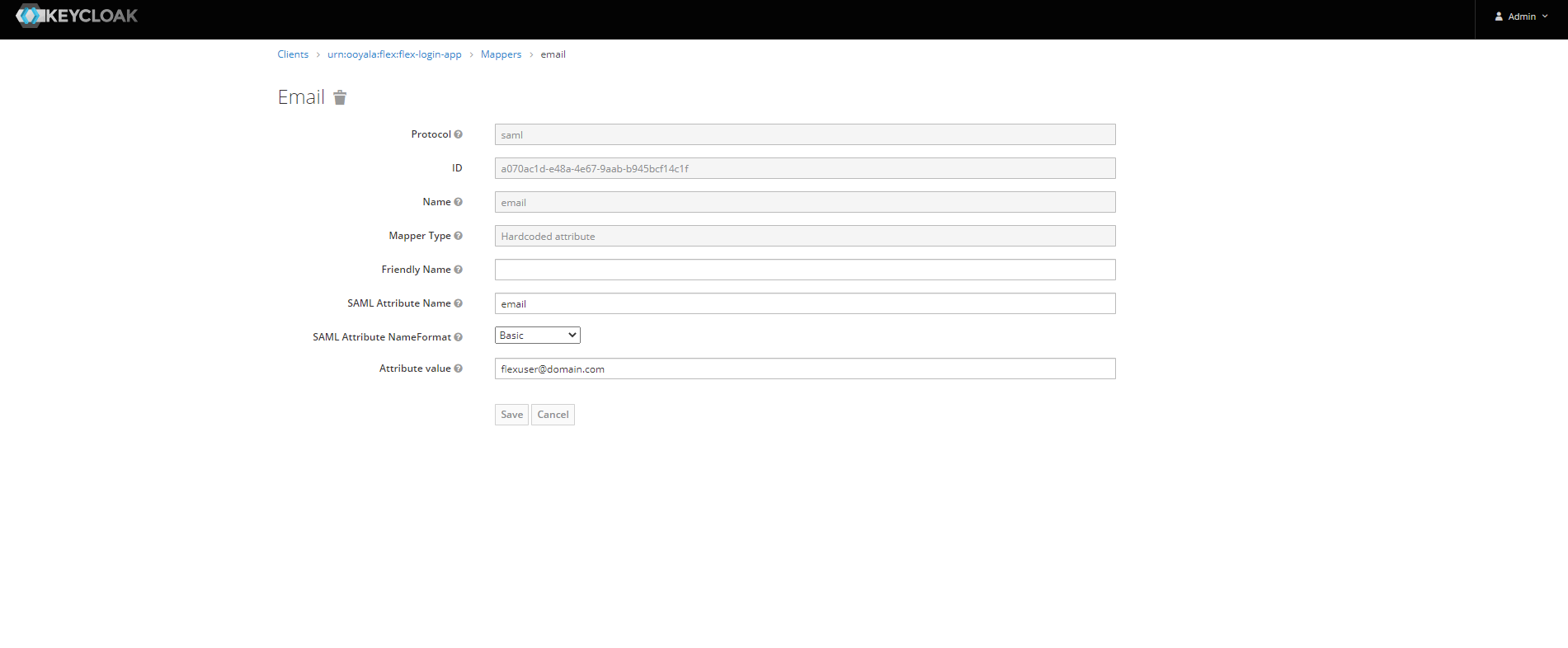
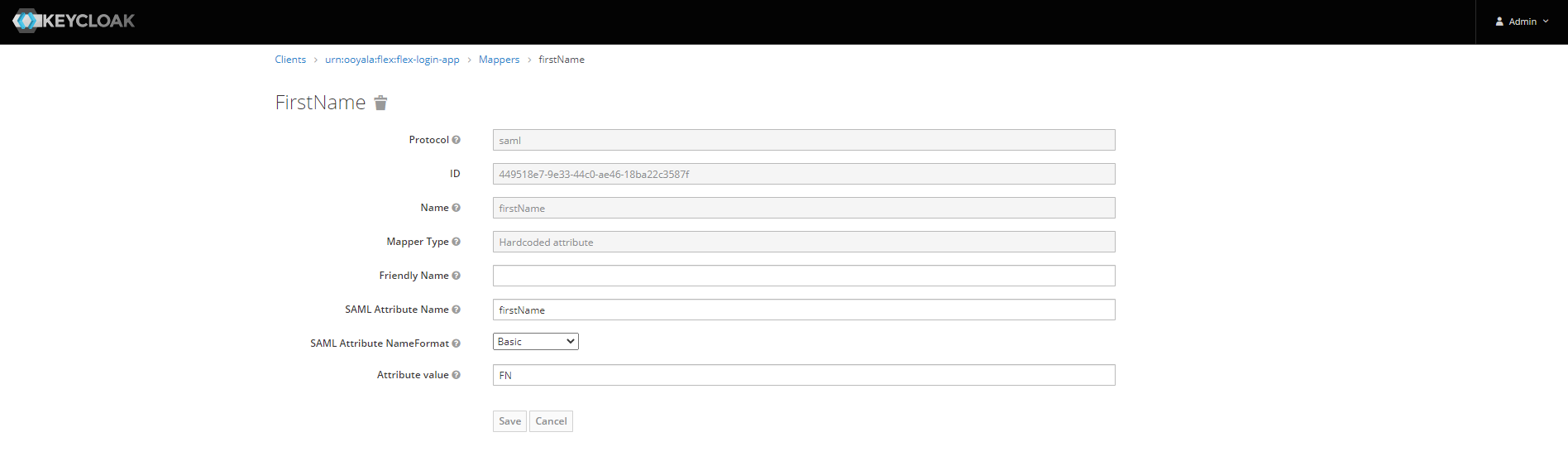
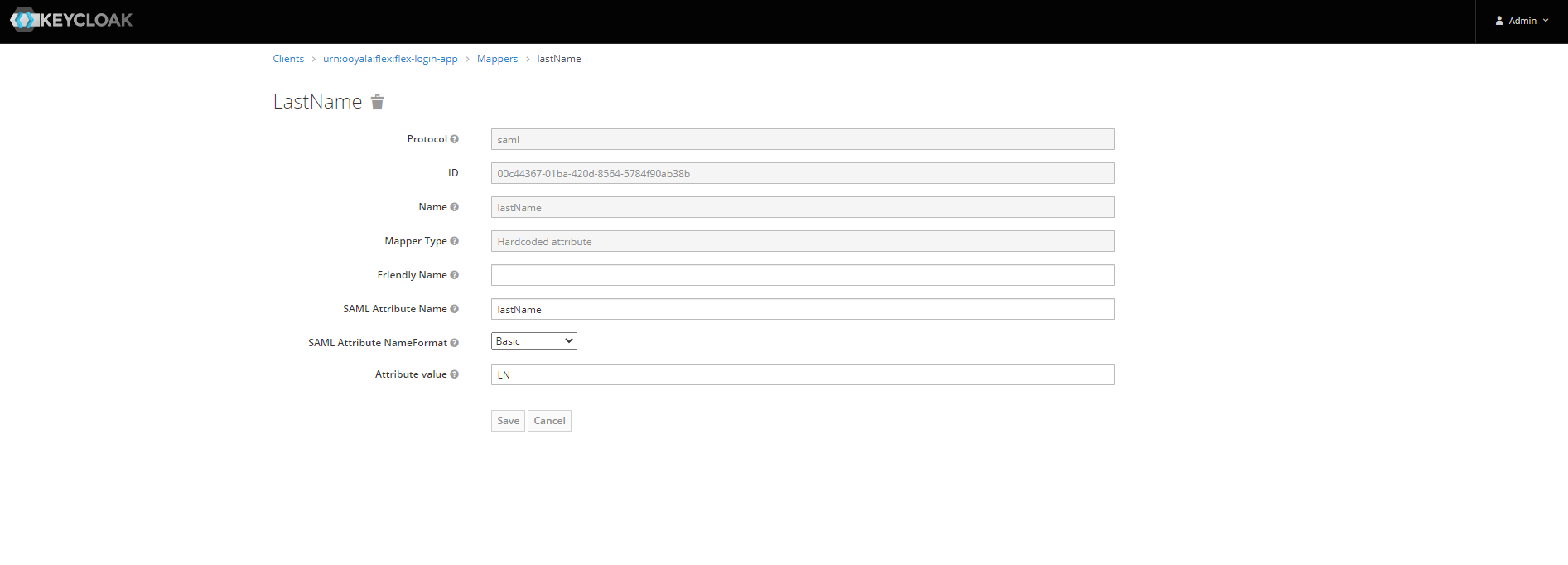
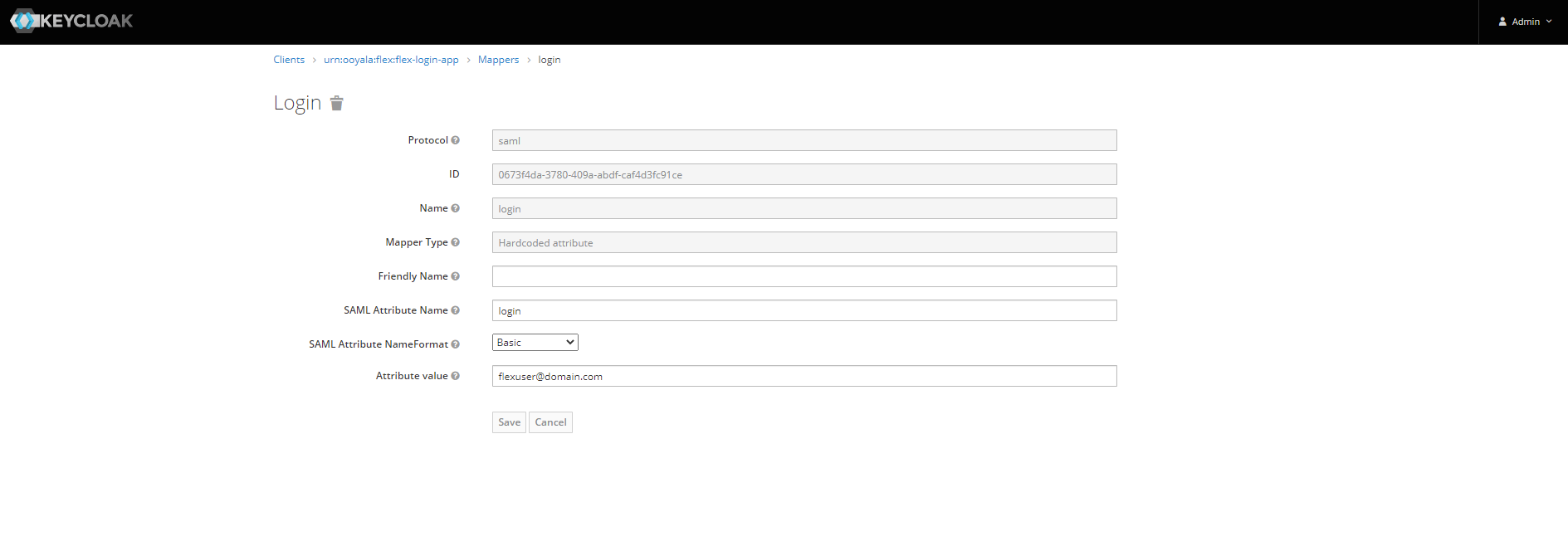
Note: Each mapper must be named in camelCase.

Add email mapper.
Add firstName mapper.
Add lastName mapper.
Add login mapper.
Add flexAccountUuid mapper.
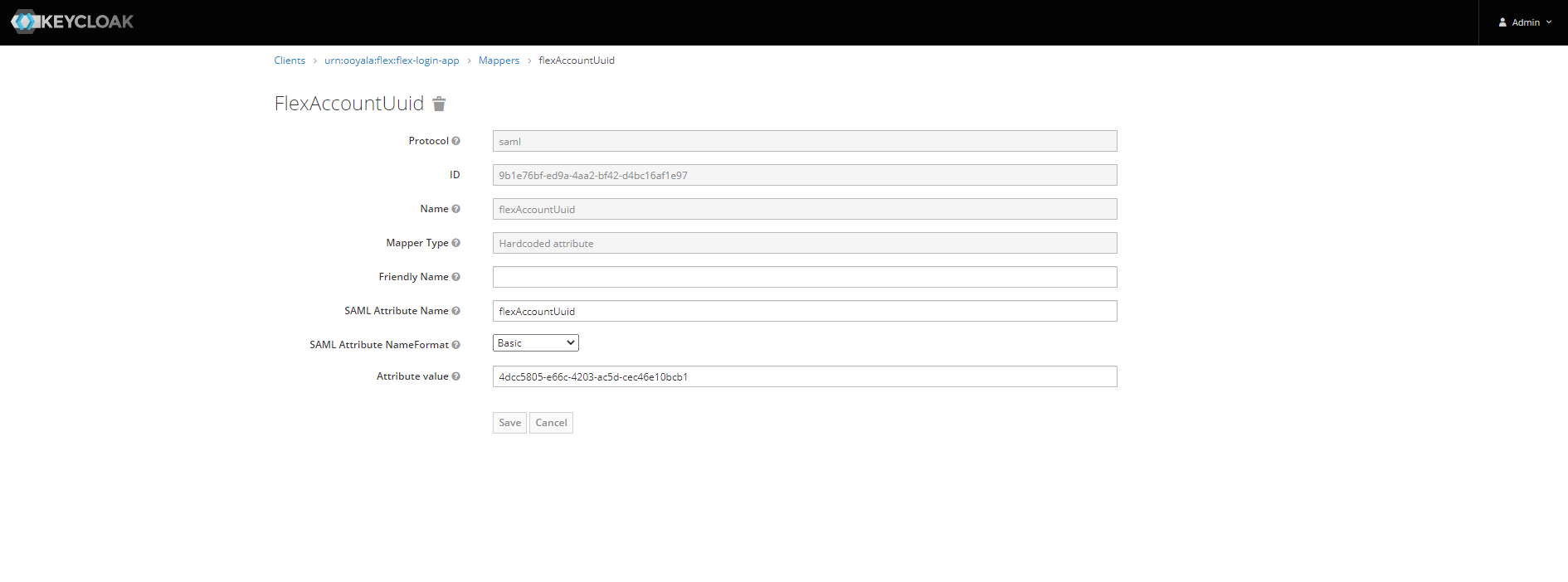
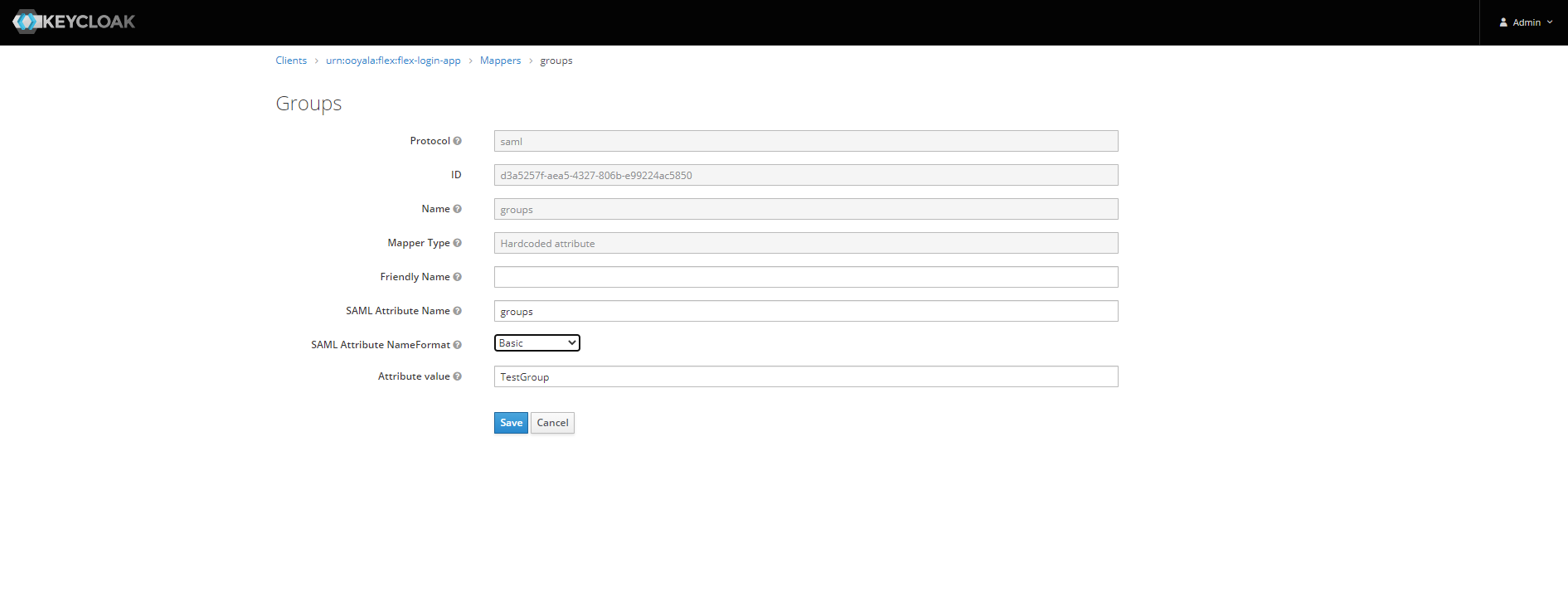
Add groups mapper (This is optional and only required when Flex Group membership sync is enabled).
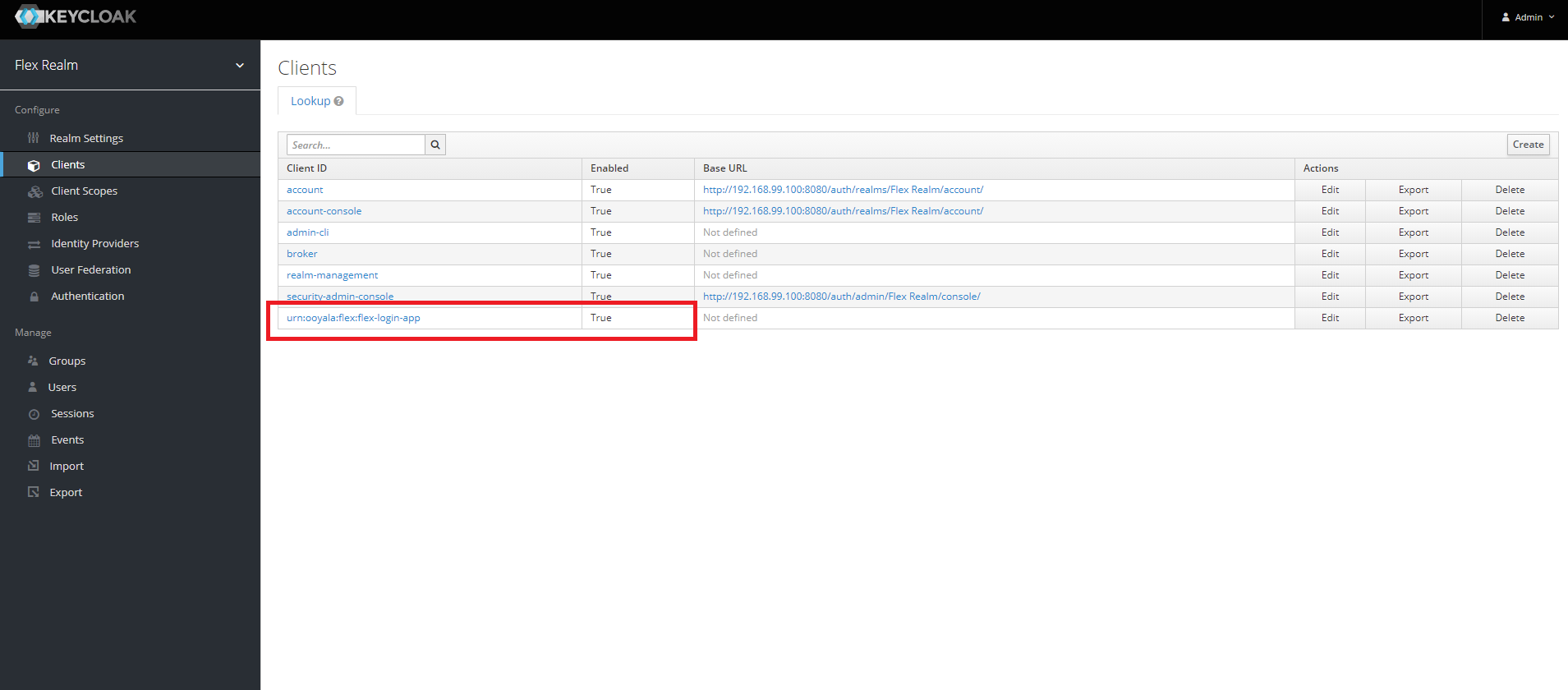
Now navigate back to Clients tab & verify that the newly configured client is present & enabled.
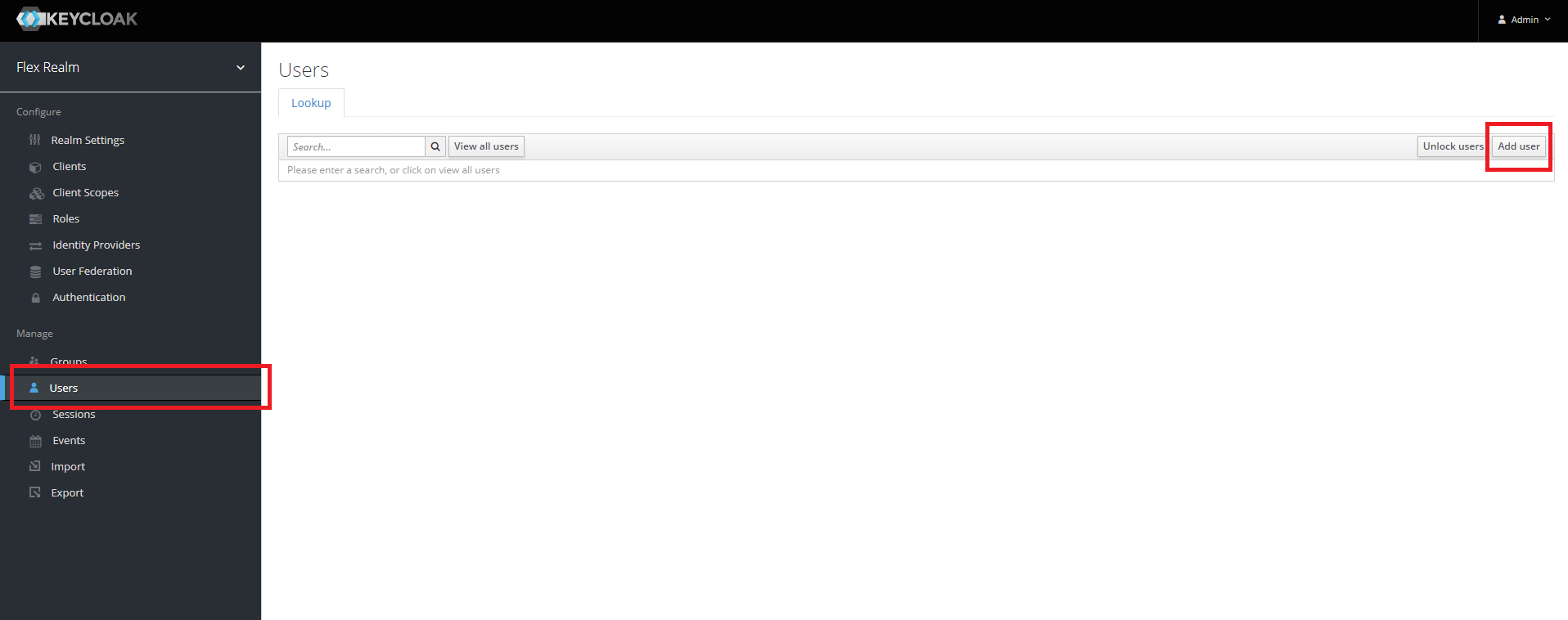
Add test users (only if required)
Navigate to the Users tab & click on the Add User button.
Enter user details
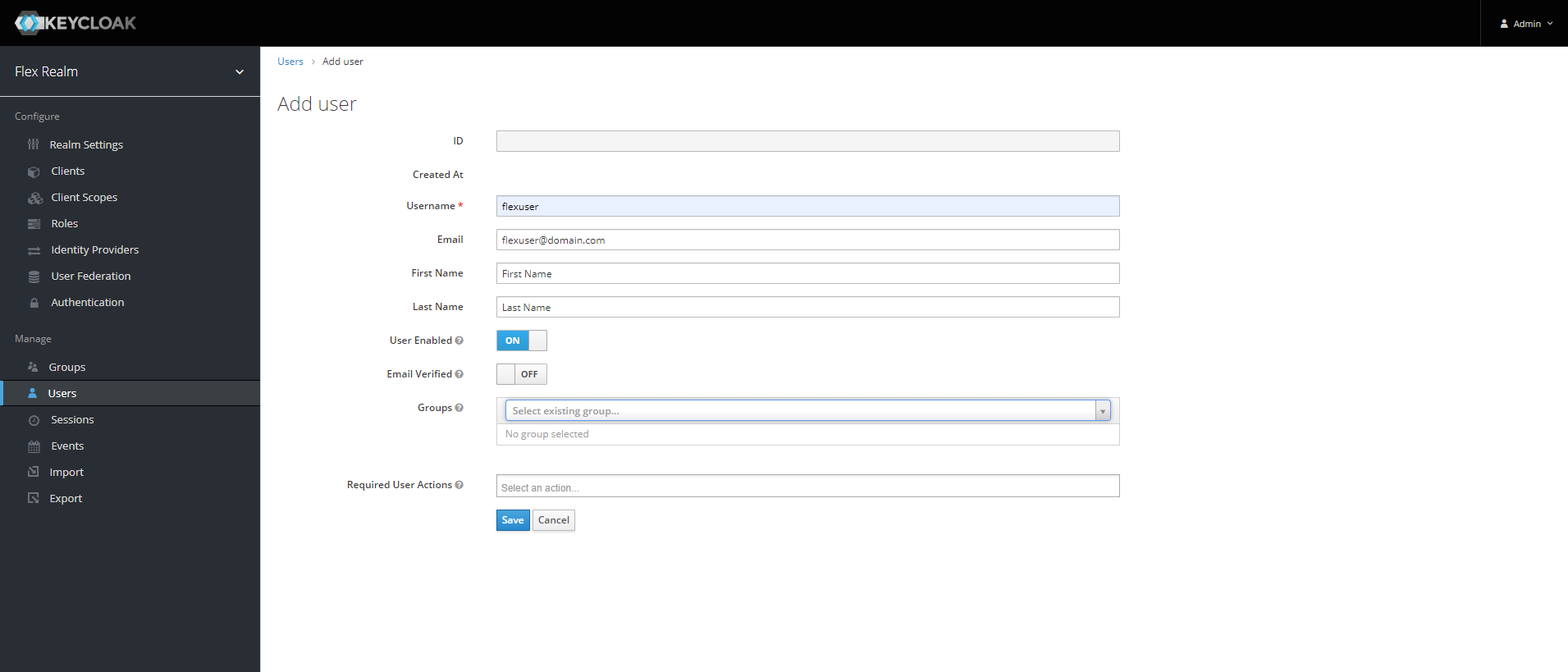
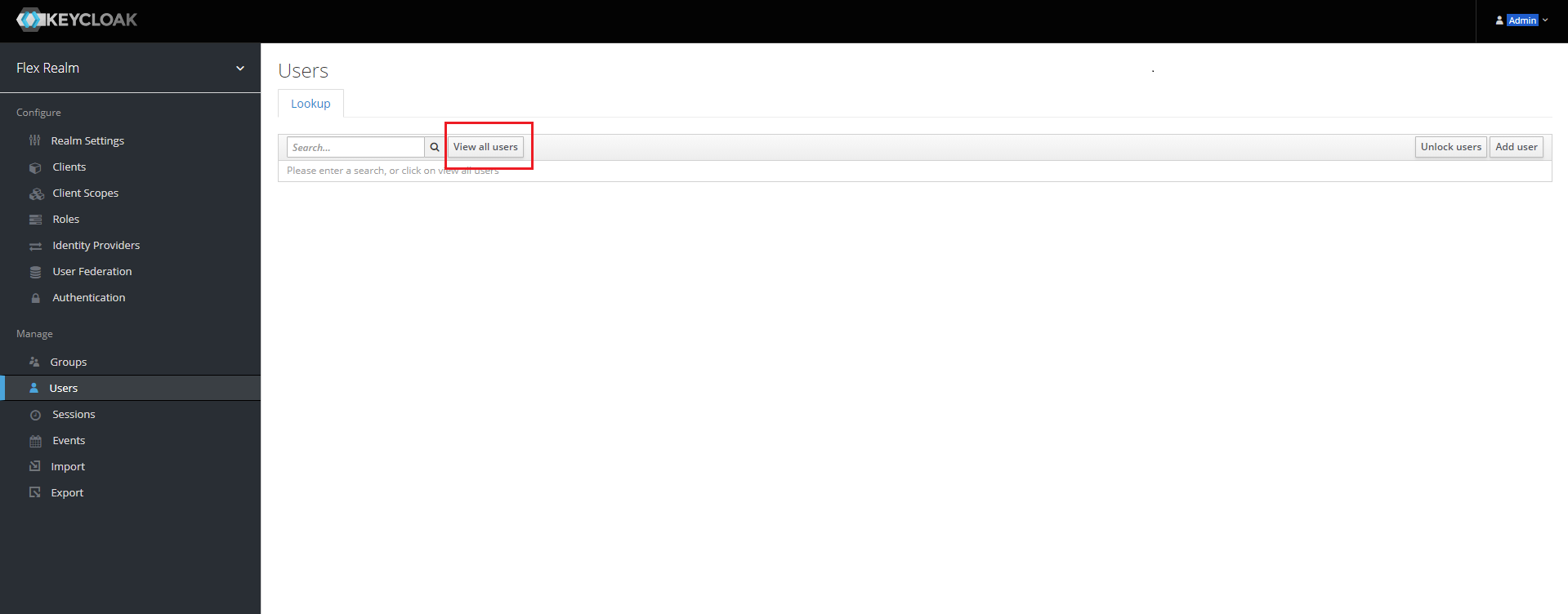
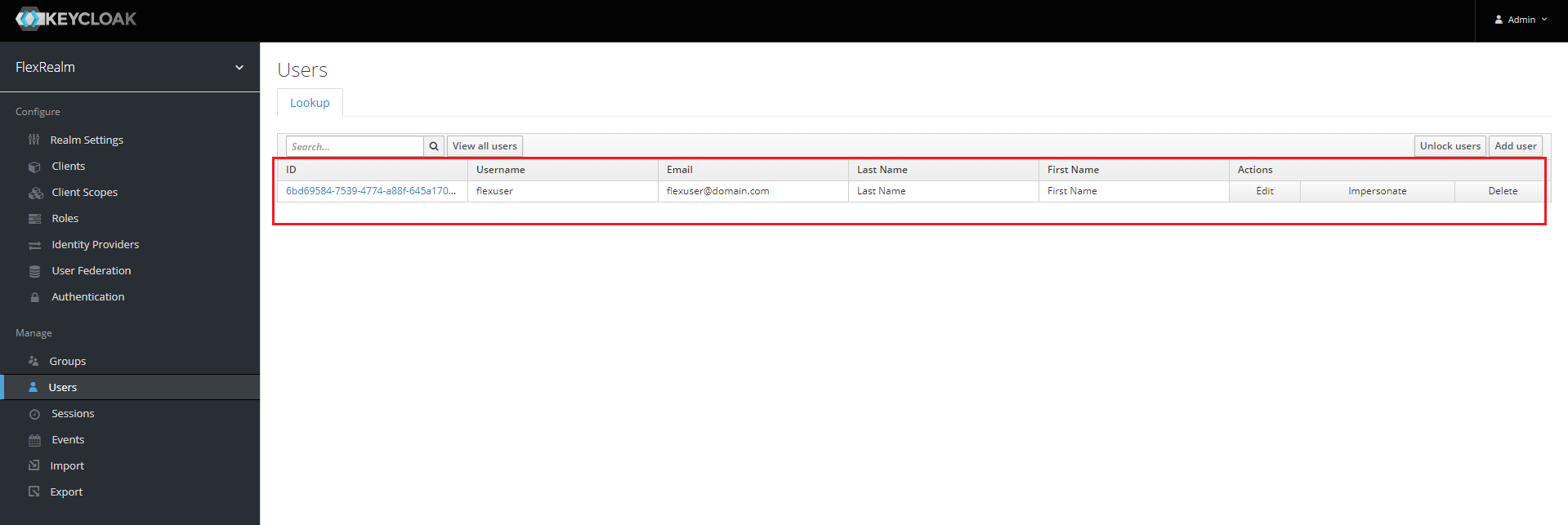
Save and navigate back to the Users tab, and check that the user was successfully created.
Note If the new user does not appear in the list, click on the View all users button
Obtain the IdP Metadata XML
Navigate to Realm Settings.
Click on the link within the Endpoints section, entitled SAML 2.0 Identity Provider Metadata.
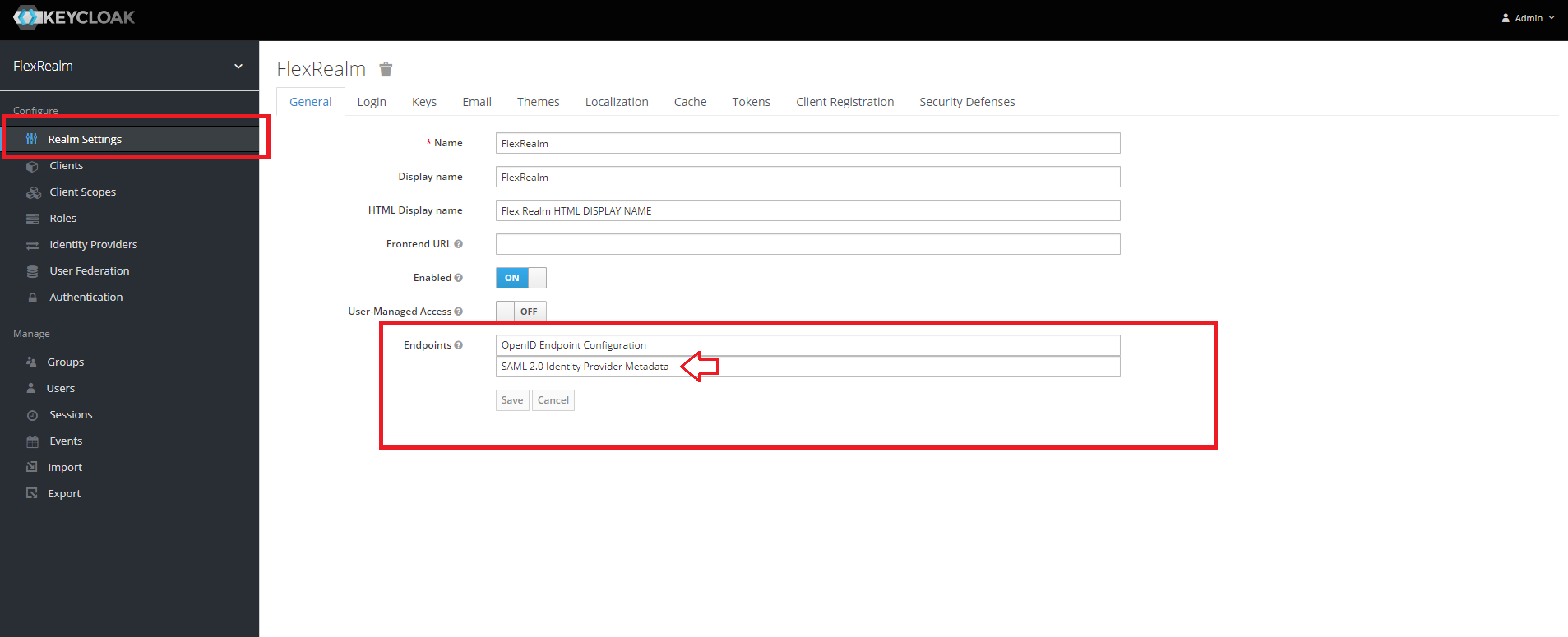
This will open an XML file in another tab. Copy the entire contents into an editor and modify it.
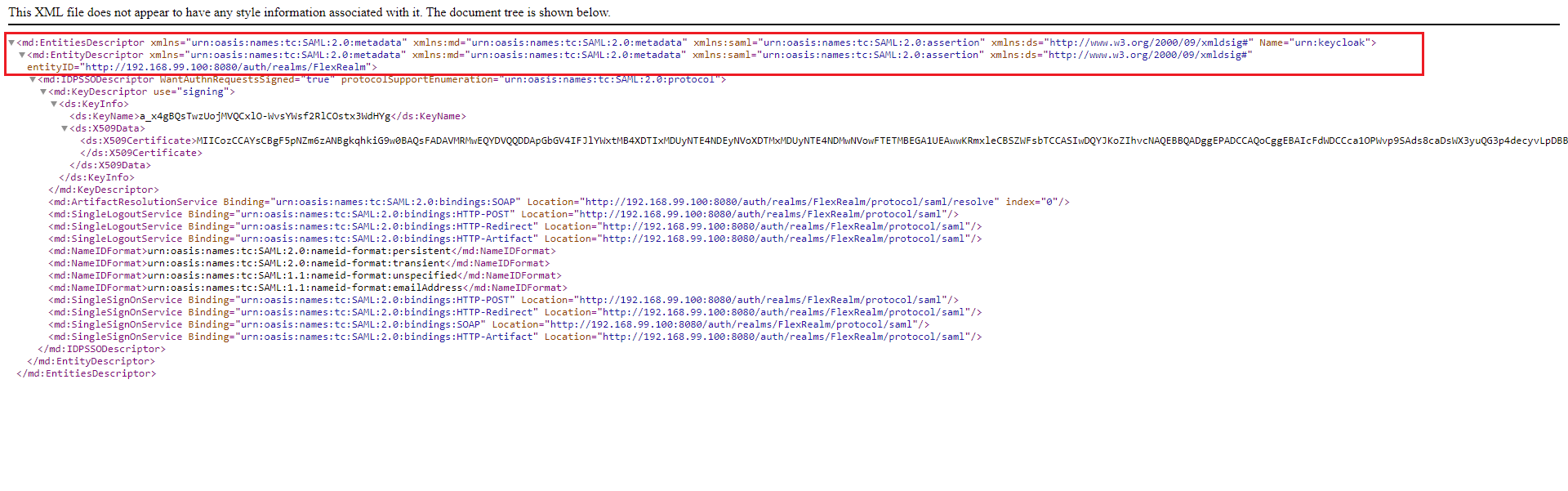
Collapse the <md:EntitiesDescriptor> tag into the <md:EntityDescriptor>** tag, adding any attributes
not already present in the latter.
For Example:
<md:EntitiesDescriptor xmlns="urn:oasis:names:tc:SAML:2.0:metadata" xmlns:md="urn:oasis:names:tc:SAML:2.0:metadata"
                       xmlns:saml="urn:oasis:names:tc:SAML:2.0:assertion" xmlns:ds="http://www.w3.org/2000/09/xmldsig#"
                       Name="urn:keycloak">
<md:EntityDescriptor xmlns="urn:oasis:names:tc:SAML:2.0:metadata" xmlns:md="urn:oasis:names:tc:SAML:2.0:metadata"
                     xmlns:saml="urn:oasis:names:tc:SAML:2.0:assertion" xmlns:ds="http://www.w3.org/2000/09/xmldsig#"
                     entityID="http://192.168.99.100:8080/auth/realms/FlexRealm">
<md:EntityDescriptor xmlns="urn:oasis:names:tc:SAML:2.0:metadata" xmlns:md="urn:oasis:names:tc:SAML:2.0:metadata"
                     xmlns:saml="urn:oasis:names:tc:SAML:2.0:assertion" xmlns:ds="http://www.w3.org/2000/09/xmldsig#"
                     entityID="http://192.168.99.100:8080/auth/realms/FlexRealm" Name="urn:keycloak">
Don’t forget to remove the closing </md:EntitiesDescriptor> tag to keep the XML valid!
Save the modified content somewhere for use in the Flex configuration steps below.
Configuration steps (Flex side)
- Log into the Flex account to which you wish to link the IdP.
- On the Account Details page, click the Metadata sub-tab and expand the External Authentication section. Specify values for both the Default Role and Default Owner fields.
- Expand the SAML Configuration section. Choose whether you wish to redirect to IdP login page automatically, and enter the IdP Display Name to be used on the login page (which will only be visible if IdP Redirect is set to No).
- Optionally, Enable IdP to Flex Group membership sync. (For this to work correctly, Groups should be configured in Flex with names matching any relevant Groups configured in Keycloak.)
- In the SAML Metadata Configuration section, provide the static IdP metadata (XML content)
- Click Save, to save the configuration.
- Click Enable, to enable the account.
- In another browser, or an incognito window, navigate to Flex. The login page should either redirect to your IdP, or provide an appropriately-titled button allowing you to log in through the IdP, depending on your configuration choices above.
Note: Verification of Keycloak SAML integration with Flex was performed using static test users only.