Dalet Flex documentation has moved!
This page is no longer actively maintained. For the latest documentation, please visit us at our new support portal: https://support.dalet.com
User Defined Object Types
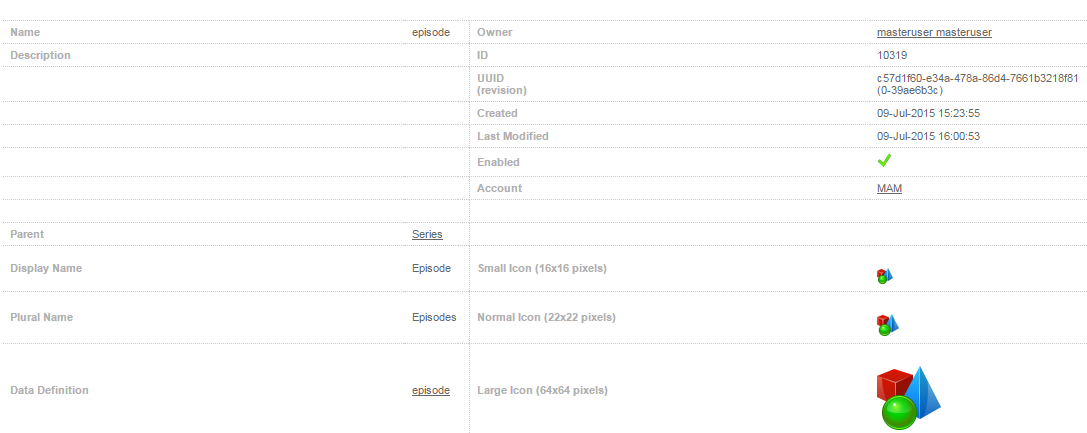
In Dalet Flex, you can create custom object types. These are known as ‘user defined object types’. Unlike the system object types, you can customise these in a variety of ways so that they meet the needs of your organisation. You can add a display name, plural name, description, and even add icons so that your user defined object type is easily identifiable in Dalet Flex. For example if you were a production company you might want to create a custom object called “Series”.
You can create relationships between your various custom object types using the Objects feature, as well as between custom object types and system object types. For example, you could create a child object type called “Episode”, and add as many episodes to a series as you wanted.
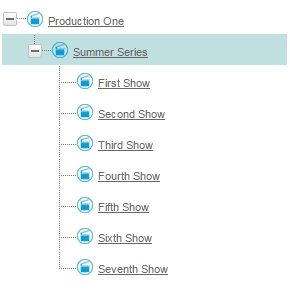
Below is an example of an object relationship hierarchy with three levels of user defined object types:
Creating a User Defined Object Type
-
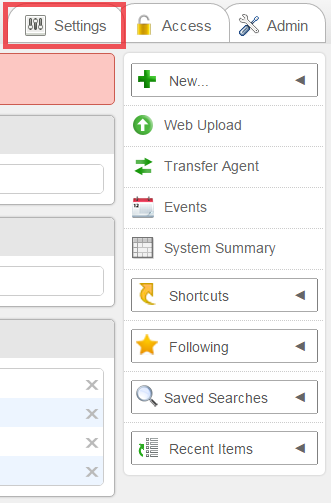
In the Dalet Flex console, click the Settings tab, located on the right side of the screen.
-
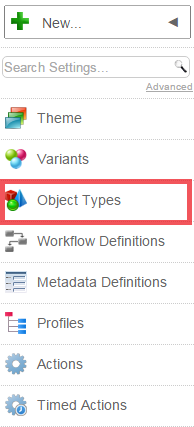
On the toolbar, click Object Types.
-
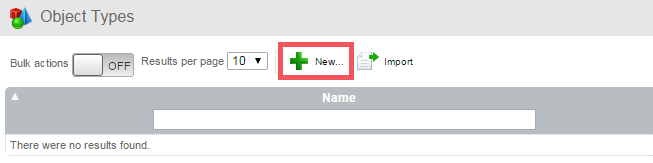
In the Object Types section, click New.
-
In the Create new Object Type section, fill in the following fields for your new object type:
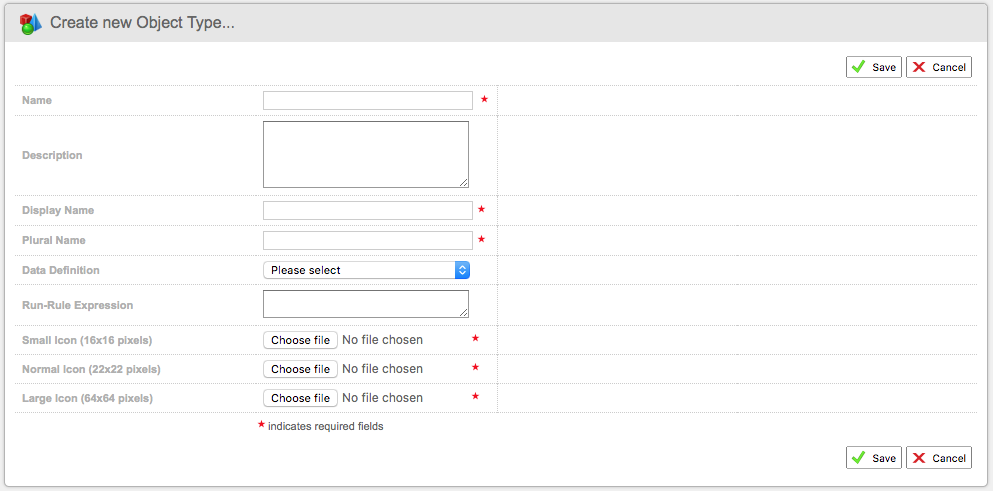
- Name: field, enter a name. Your custom object can be called anything you like.
- Description (optional): field, you can enter a description that tells others about your custom object type.
- Display Name: enter a display name for the object. The Display Name and Name fields should match.
- Plural Name: enter the plural name for your object. For example, if your object was called an Episode, then the plural would be Episodes.
- Data definition (optional): select a data definition from the drop down menu.
- Run-Rule Expression (optional): enter a run rule expression
- Small Icon: click Choose File to select the image to use for the small icon. This image must be 16 x 16 pixels.
- Normal Icon: click Choose File to select the image to use for the normal sized icon. This image must be 22 x 22 pixels.
- Large Icon: click Choose File to select the image to use for the large icon. This image must be 64 x 64 pixels.
-
Once you’re happy with your settings, click Save to finalize.
-
Click Enable to enable your user defined object type.
User Defined Object Type Properties
You can set certain properties for your user defined object types.
If you have already enabled your User Defined Object, you must disable it before changing any properties.
To set properties for your User Defined Object type
-
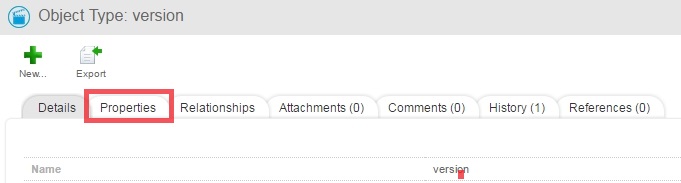
In the Object Details section, click the Properties tab.
-
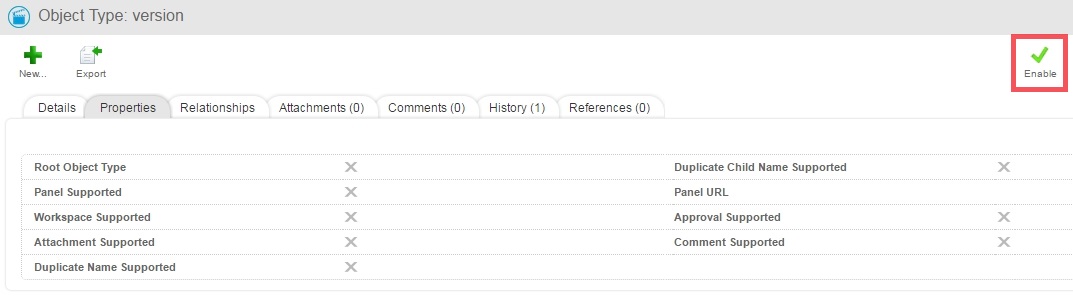
Under the Properties tab, click Edit.
-
Select the properties you wish to assign to the your user defined object type.

-
Click Save to finalise.
-
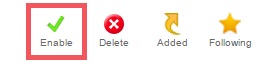
Click Enable to enable the object.
The properties that can be assigned to your user defined object type are as follows:
- Root Object Type: This property is relevant when you are creating hierarchies using the objects feature. A root object type is an object that is the first level of an object hierarchy.
- Panel Supported: You can choose this property if you want the object type to be panel supported.
- Workspace Supported: You can choose this property if you want your object to be workspace supported.
- Attachment Supported: You can choose this property if you want to be able to attach files to your object.
- Duplicate Name Supported: You can choose this property if you want your object to support duplicate names.
- Duplicate Child Name Supported: You can choose this property if you want your object to support duplicate child names.
- Panel URL: This is the field in which you enter the URL for the panel.
- Approval Supported: You can choose this property if you want your object to support approval.
- Comment Supported: You can choose this property if you want people to be able to comment on your object.
Run Rules for User Defined Object Types
User defined object types support the use of run-rule expressions. In order to use a run-rule expression against a user defined object type, simply enter a run-rule expression in the Run-Rule Expression field, found in the Details section for a user defined object type.
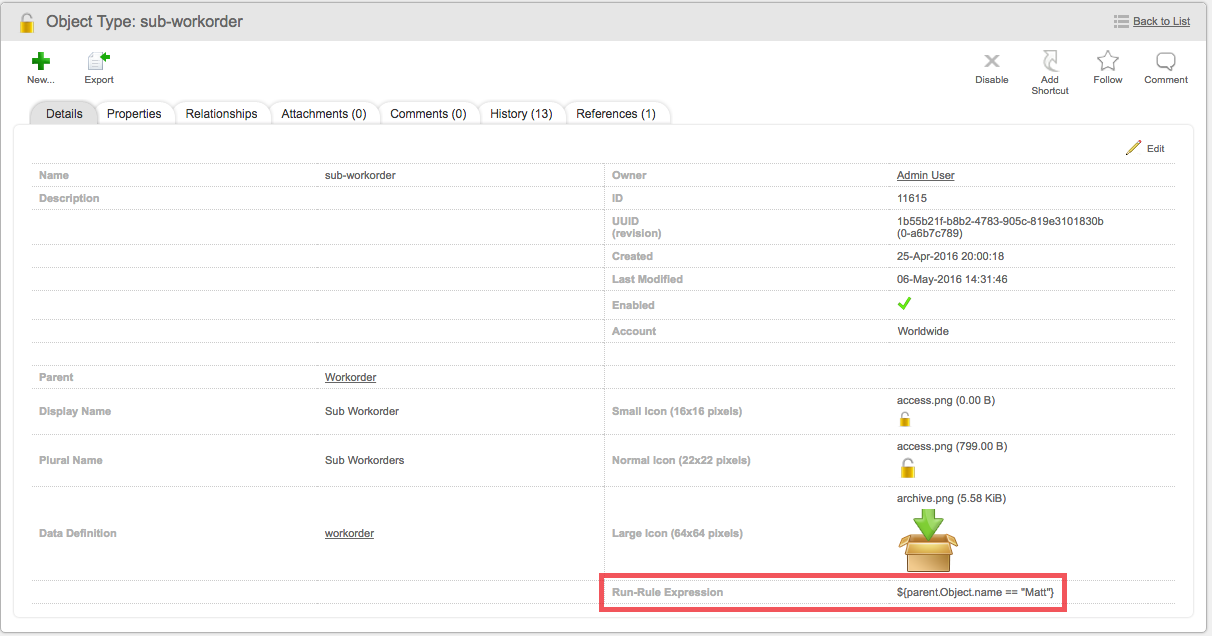
The run rule that you enter must be a boolean, e.g. it has a value of either true or false, and it uses the following variables:
- Current user (user)
- Current object - i.e. parent object (parent)
- Metadata expressions of parent object (@@ @@)
Example:
${user.role.mioObject.name == "Admin" && parent.mioObject.name == "My Production && "@@productionid@@" == "123"}
As long as the lockable property is set to true for the User Defined Object Type, a UDO is locked while a job is in progress that acts on that UDO. You can check the status of this property on the summary page for the UDO Type.